 prawel.pl
Make a daily agenda wallpaper with Apple Shortcuts
Build a shortcut that draws today's calendar events onto your iPhone wallpaper every morning, using Shortcut Canvas and a Time of Day automation. No widgets or accounts needed.
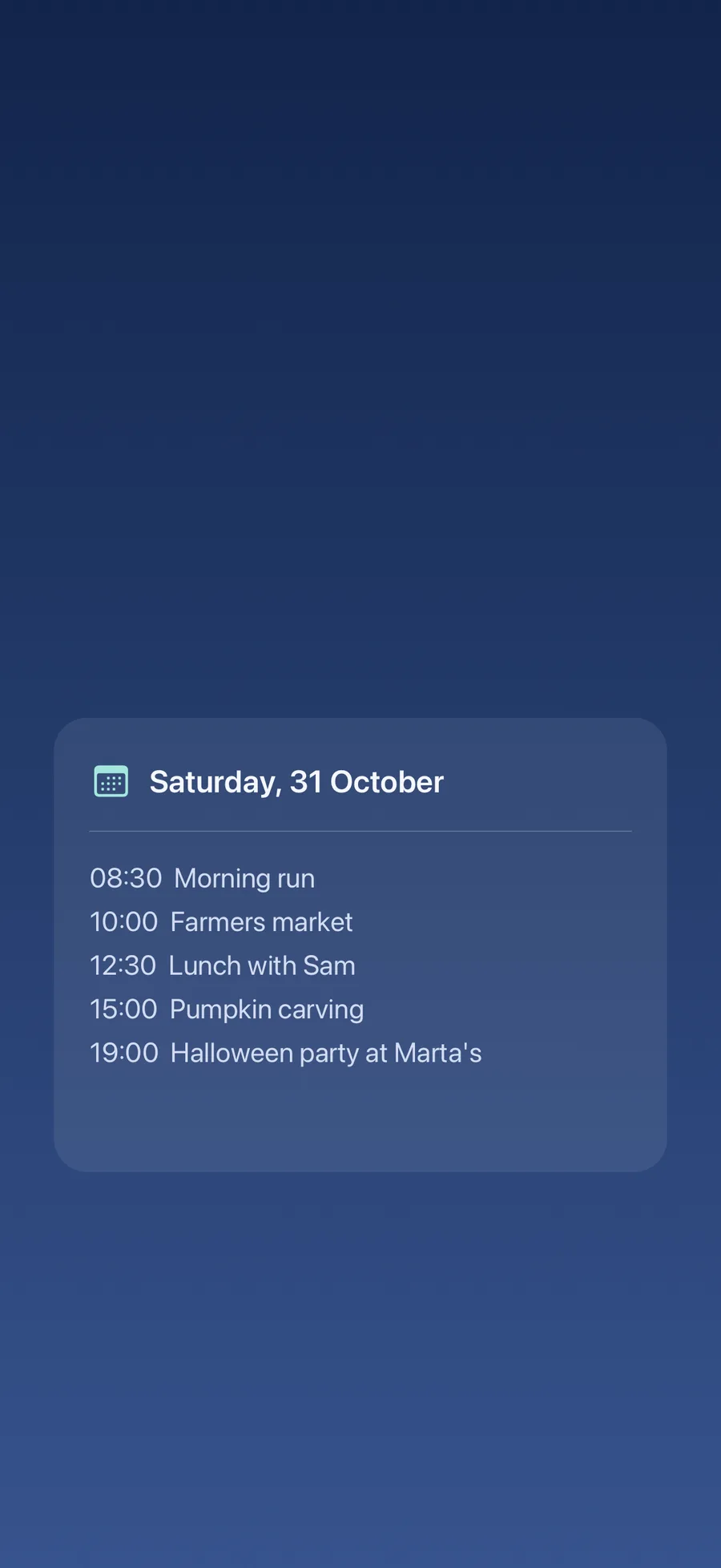
Widgets can show your next event, but only one or two at a time. This guide builds a shortcut that draws the whole day’s schedule onto your wallpaper instead. Add a Time of Day trigger, and your agenda is waiting each morning when you pick up your iPhone.
The drawing is done by Shortcut Canvas, which adds image-building actions to Apple Shortcuts. The shortcut reads today’s events with Apple’s own Calendar actions, lays them out on a canvas, renders a PNG and sets it as your wallpaper. Everything happens on the device: Shortcut Canvas has no network access and needs no account.
The screenshots show Shortcuts on iOS 27 and Shortcut Canvas 1.2.1 on an iPhone 17, with a sample Saturday calendar.
What you need
- An iPhone with Shortcut Canvas installed and the Shortcuts app.
- Some events in your calendar today, so you can see the result while testing.
- About 15 minutes to add the actions.
Before you start, think about where the wallpaper appears. A Lock Screen wallpaper shows your event titles to anyone who picks up the phone. If your calendar is private, use the image for the Home Screen only, or limit the shortcut to one calendar as shown in step 1.
 View full size
Get the finished shortcut
TLDR: If you’d rather start from a working copy, open this page on your iPhone and download the Agenda Wallpaper shortcut. Open the downloaded file from Safari’s downloads or from Files → Downloads, then tap Add Shortcut.
Before you run it:
- Install Shortcut Canvas first. The shortcut uses its actions.
- If your iPhone isn’t an iPhone 17, change
1206×2622in Create Canvas and the first Add Rectangle to your screen size, as described in step 5. - Add the Time of Day trigger yourself, as described in step 9. The download doesn’t include it.
The rest of this guide builds the same shortcut step by step and explains what each action does.
How the shortcut is put together
The shortcut works in three parts:
- Collect the events. Find today’s calendar events and turn them into lines of text, such as
09:30 Design review. - Draw the wallpaper. Create a canvas the size of your screen and add a background, a card, a date heading and the agenda text.
- Set the wallpaper. Render the canvas as a PNG and pass it to Apple’s Set Wallpaper Photo action.
Open Shortcuts, tap + to create a shortcut and rename it Agenda Wallpaper. Shortcuts on iOS 27 opens new shortcuts with Describe a Shortcut; tap Editor to add actions yourself. Add the actions below in order, using the search field at the bottom. To find a Shortcut Canvas action, search for its name or for “Shortcut Canvas”.
1. Find today’s events
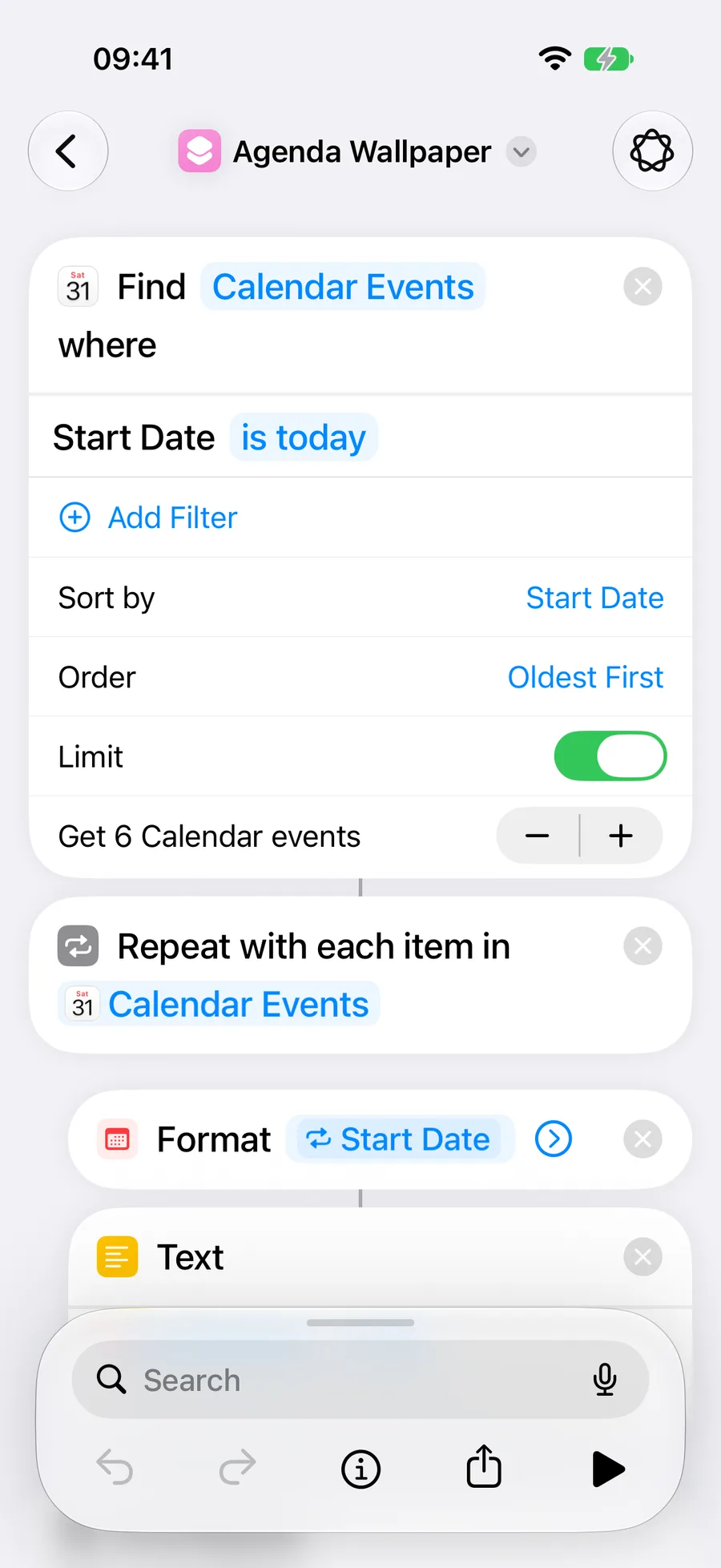
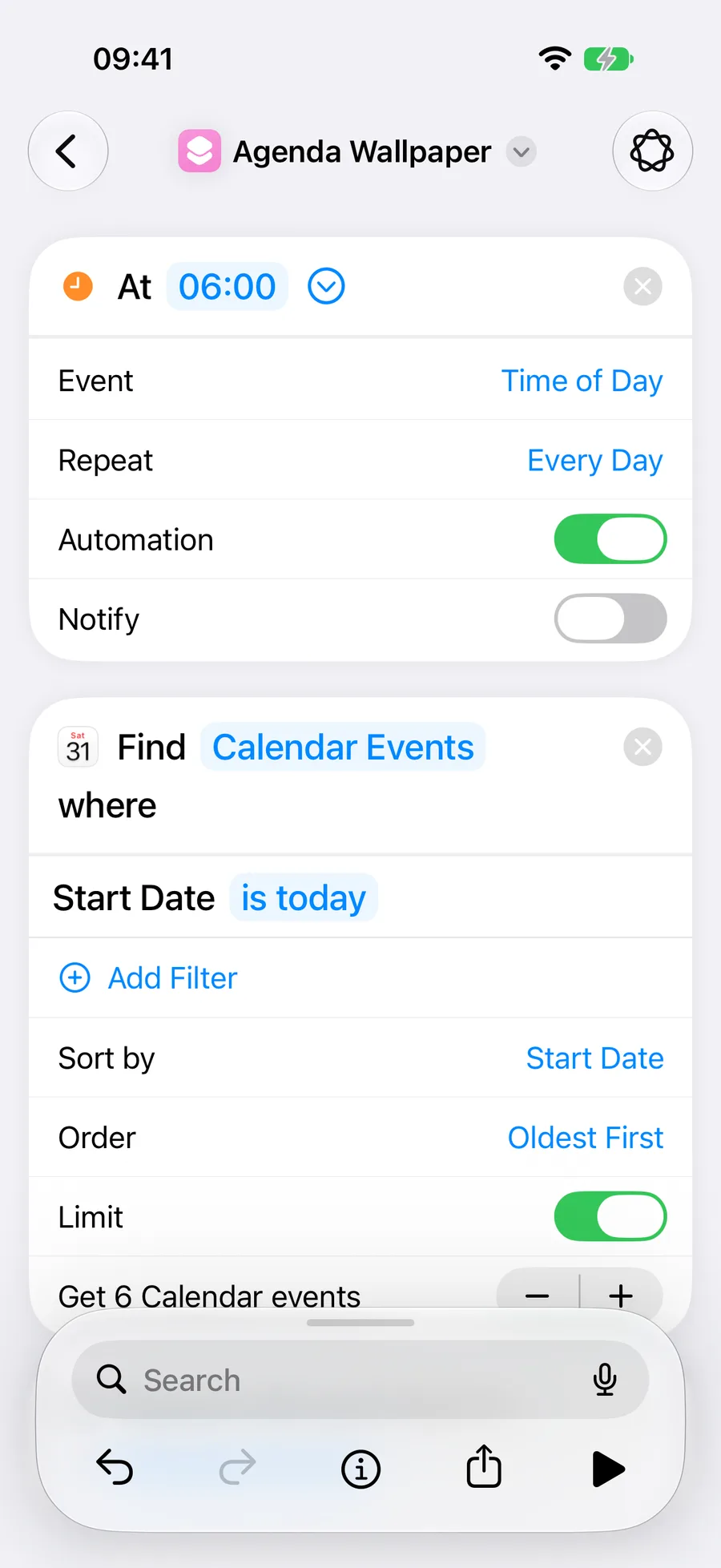
Add Find Calendar Events. It starts with the filter Start Date is in the next 7 days:
- Tap is in the next and choose is today.
- To show only some calendars, tap Add Filter and set Calendar is and the calendar you want.
- Set Sort by to Start Date. Order changes to Oldest First.
- Turn on Limit and tap + until it reads Get 6 Calendar events. More than six events rarely fit at a readable size.
 View full size
2. Turn each event into a line of text
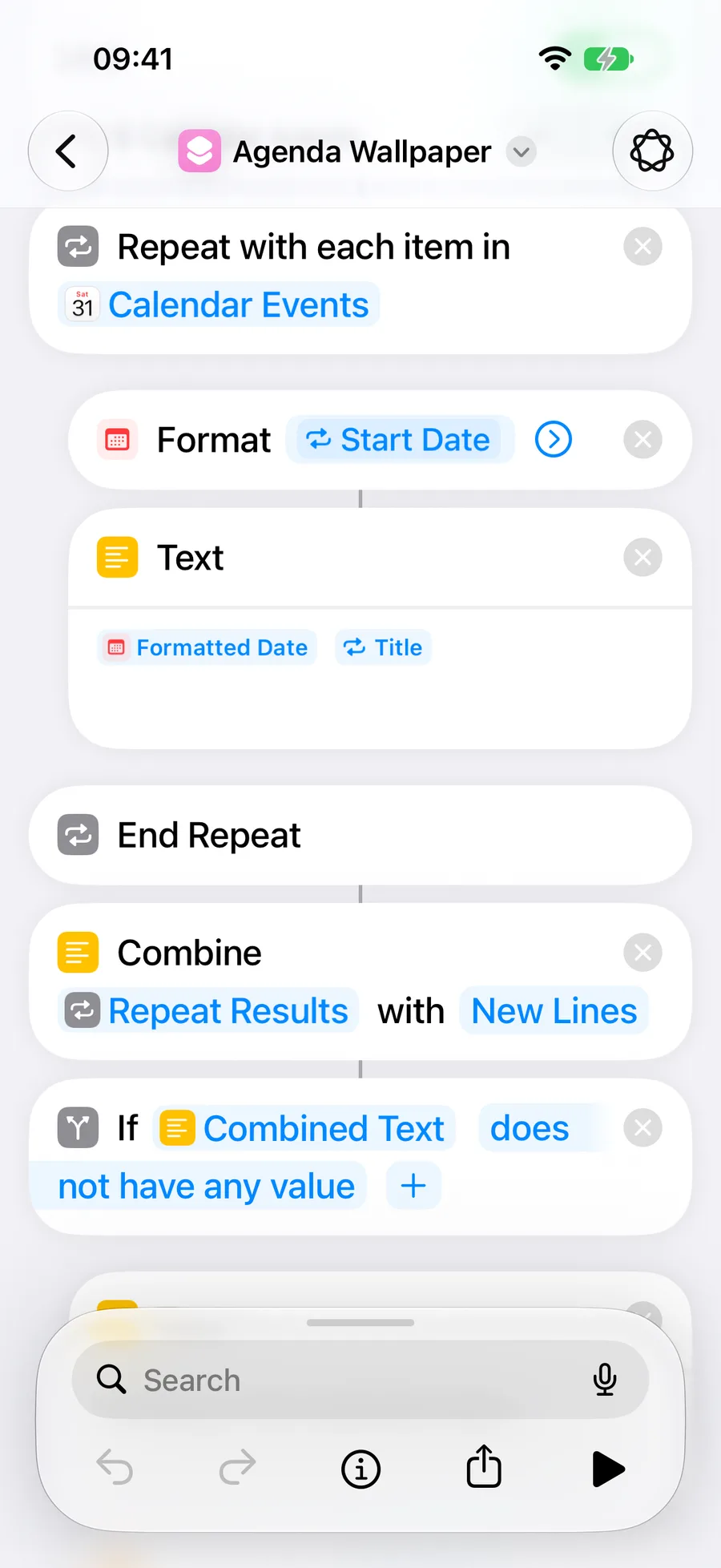
Add Repeat with Each. It connects to Calendar Events from the previous action. Inside the repeat:
- Add Format Date and set its date to Repeat Item, then tap the variable and choose Start Date. Tap the arrow, choose Custom for the date format, and enter
HH:mm. Every time then has the same width, so the titles line up in a column. Useh:mm aif you prefer 12-hour times. - Add Text and enter Formatted Date, two spaces, and Repeat Item with its Title property.
After End Repeat, add Combine Text. Set it to combine Repeat Results with New Lines.
All-day events start at midnight, so they appear as 00:00. To label them instead, put an If inside the repeat that checks the Repeat Item’s Is All Day property, and use the text All day in place of the time.
 View full size
3. Handle days with nothing scheduled
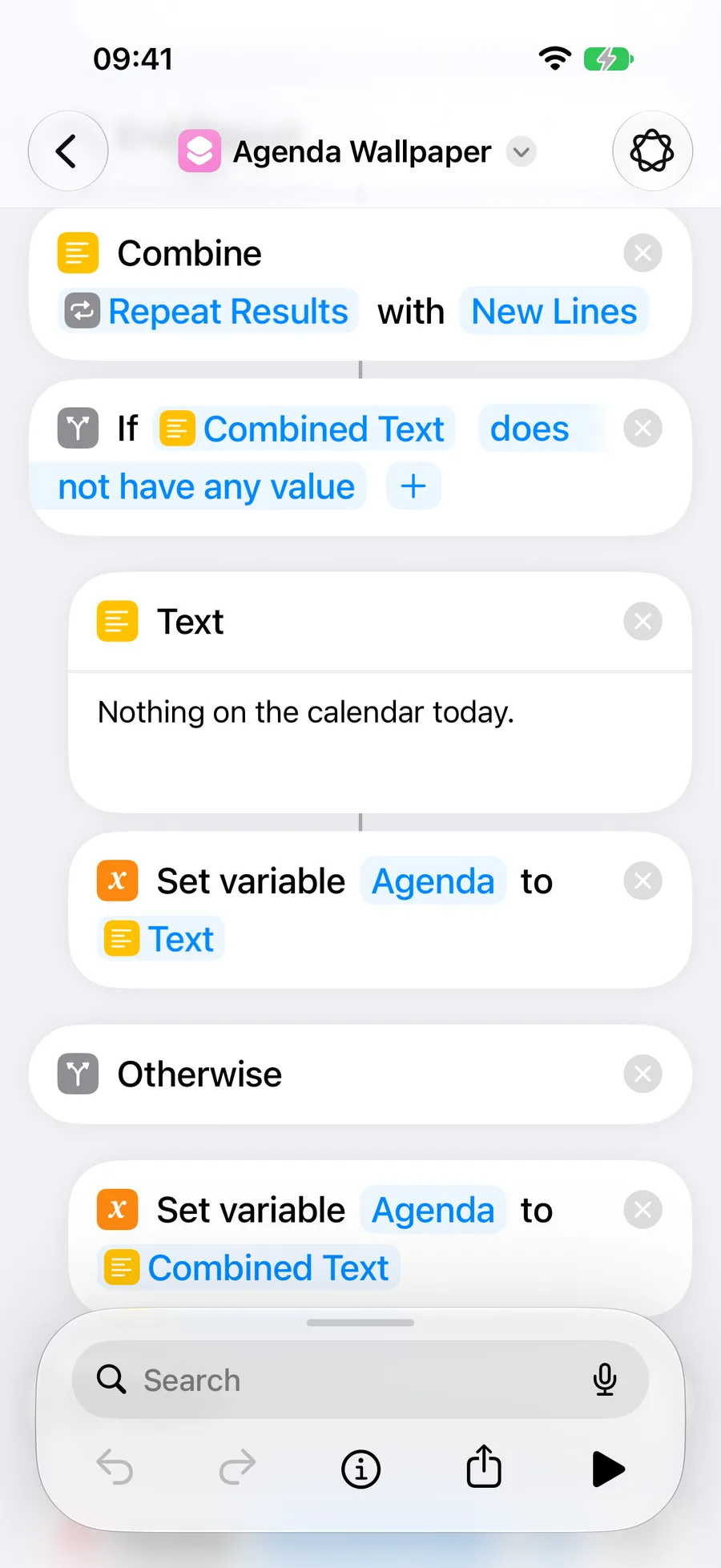
Without events, the card would be empty. Add If, set the condition to Combined Text does not have any value, and inside it:
- Add Text with something like
Nothing on the calendar today. - Add Set Variable, name the variable
Agenda, and set it to that Text.
Under Otherwise, add Set Variable Agenda to Combined Text. The rest of the shortcut uses Agenda, whichever branch ran.
4. Format the date heading
After End If, add Format Date for the Current Date. Choose Custom and enter EEEE, d MMMM, which produces headings like Saturday, 31 October. Use EEEE, MMMM d if you prefer the month first.
 View full size
5. Create the canvas
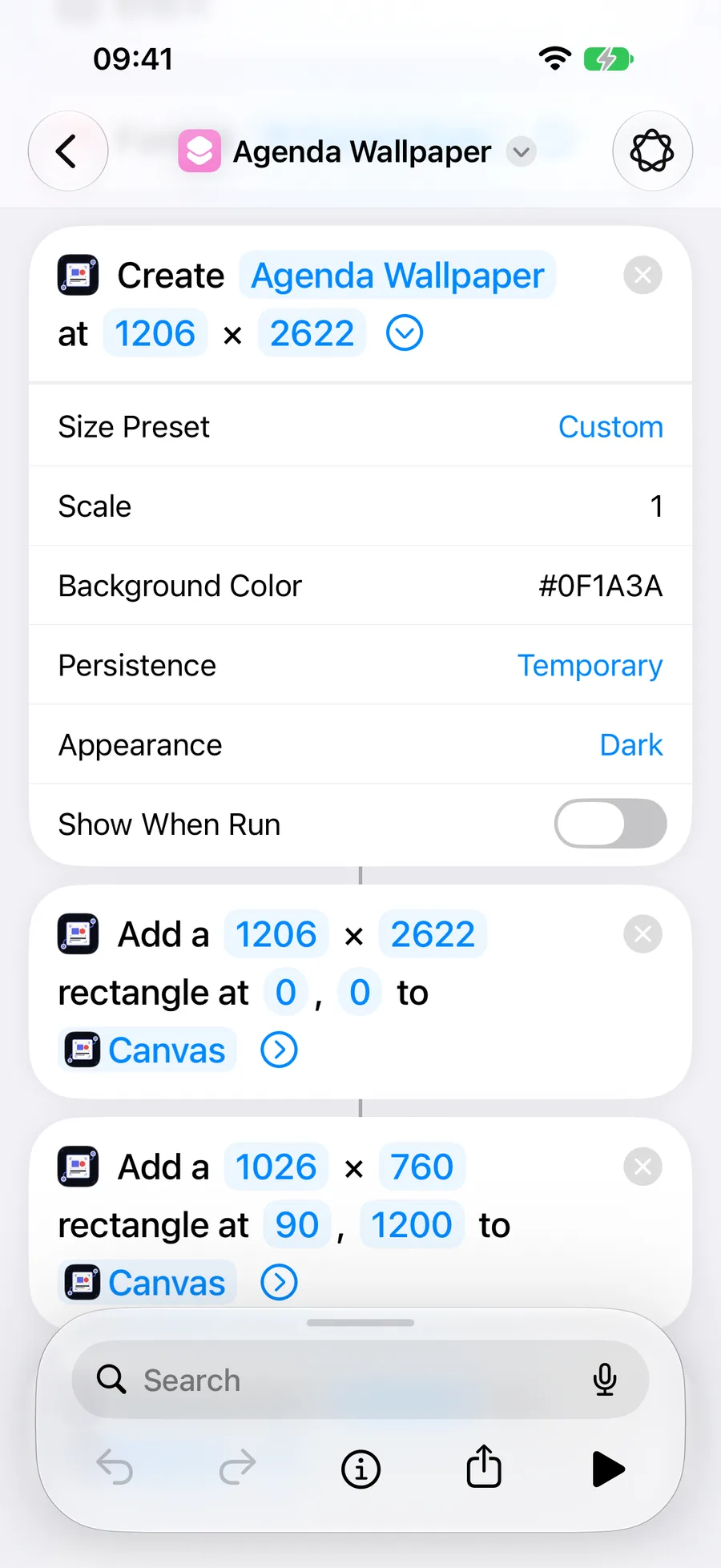
Add Create Canvas from Shortcut Canvas. Your wallpaper should match your screen’s pixel size, so type the width and height into the action and keep Size Preset on Custom. The values in this guide are for the 1206 × 2622 screen of iPhone 17; iPhone 15 and iPhone 16 use 1179 × 2556. To find your iPhone’s size, run a separate shortcut with Get Device Details set to Screen Width and then Screen Height.
Tap the arrow to set the other parameters:
| Parameter | Value |
|---|---|
| Name | Agenda Wallpaper |
| Width × Height | 1206 × 2622 |
| Size Preset | Custom |
| Scale | 1 |
| Background Color | #0F1A3A |
| Persistence | Temporary |
| Appearance | Dark |
Scale stays at 1 because width and height are already in pixels. Temporary canvases are cleaned up automatically, which suits a wallpaper made fresh every day. While you’re adjusting the layout, choose Saved instead so you can open the canvas in the Shortcut Canvas app and zoom into the preview.
 View full size
6. Draw the background and card
Each Shortcut Canvas action takes the canvas from the action before it and passes it on, so the following actions connect to it automatically.
Add Add Rectangle for a gradient background that covers the whole canvas. Tap the arrow to reveal its other parameters.
| Parameter | Value |
|---|---|
| Width × Height | 1206 × 2622 |
| X, Y | 0, 0 |
| Fill Color | #0F1A3A |
| Gradient End Color | #2A3F7A |
| Gradient Direction | Top to Bottom |
Add a second Add Rectangle for the card that holds the agenda. It sits in the lower half of the screen, clear of the Lock Screen clock and the flashlight and camera buttons.
| Parameter | Value |
|---|---|
| Width × Height | 1026 × 760 |
| X, Y | 90, 1200 |
| Fill Color | #FFFFFF14 |
| Corner Radius | 56 |
The last two digits of #FFFFFF14 set the opacity, so the card is white at about 8% and lets the gradient show through.
7. Add the heading and agenda
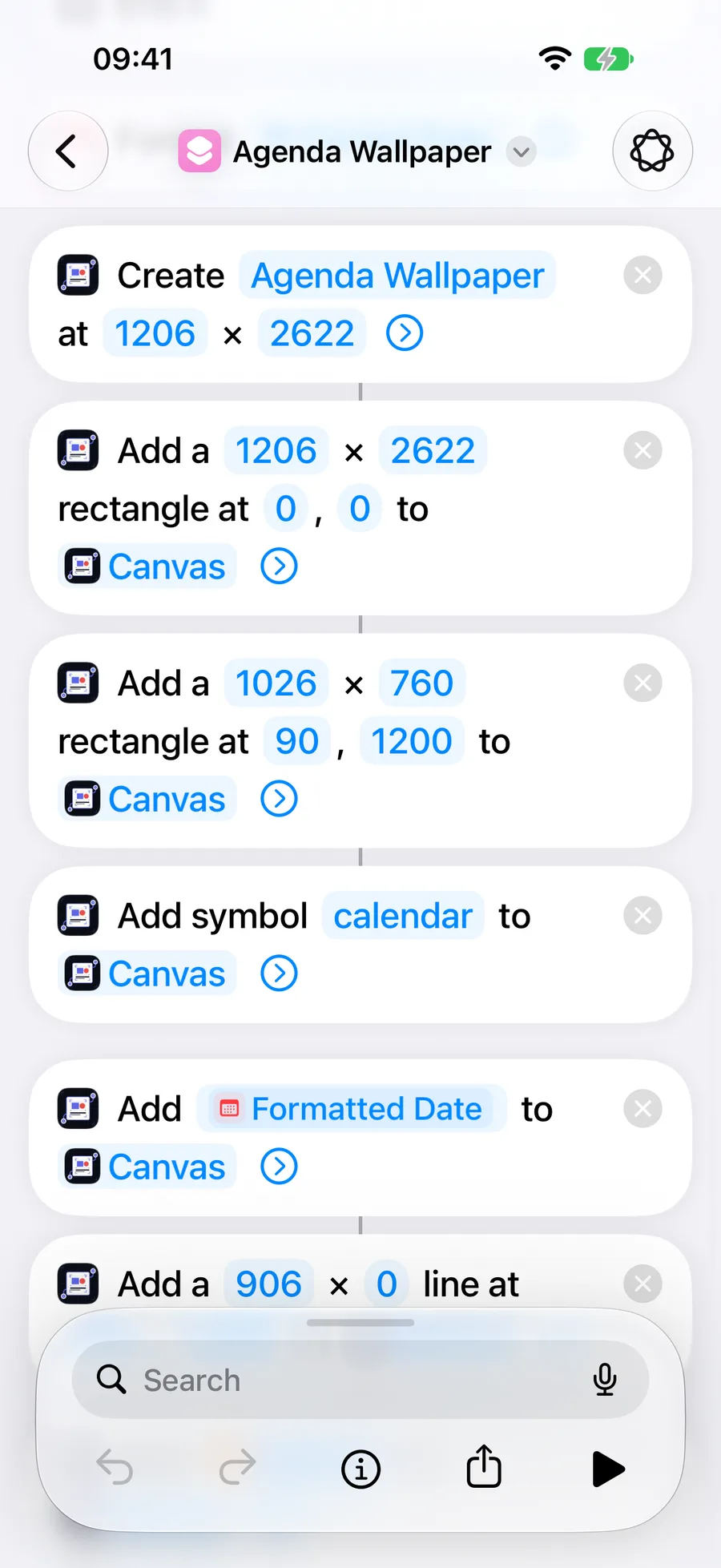
Add Add Symbol for a small calendar icon:
| Parameter | Value |
|---|---|
| Symbol Name | calendar |
| X, Y | 150, 1270 |
| Width × Height | 72 × 72 |
| Point Size | 56 |
| Foreground Color | #94E2D5 |
Add Add Text for the date heading, with the Formatted Date from step 4 as its text:
| Parameter | Value |
|---|---|
| X, Y | 250, 1270 |
| Maximum Width | 800 |
| Font Size | 52 |
| Font Weight | Semibold |
| Text Color | #F2F5FF |
| Maximum Height | 72 |
| Vertical Alignment | Center |
Add Add Line to divide the heading from the events. A height of 0 makes the line horizontal.
| Parameter | Value |
|---|---|
| Width × Height | 906 × 0 |
| X, Y | 150, 1390 |
| Color | #FFFFFF33 |
| Thickness | 2 |
 View full size
Finally, add Add Text with the Agenda variable as its text:
| Parameter | Value |
|---|---|
| X, Y | 150, 1440 |
| Maximum Width | 906 |
| Font Size | 46 |
| Text Color | #C9D3EF |
| Maximum Height | 460 |
| Minimum Scale Factor | 0.6 |
| Line Spacing | 18 |
Maximum Height keeps the text inside the card, and Minimum Scale Factor lets it shrink to 60% on a busy day instead of being cut off.
8. Render and set the wallpaper
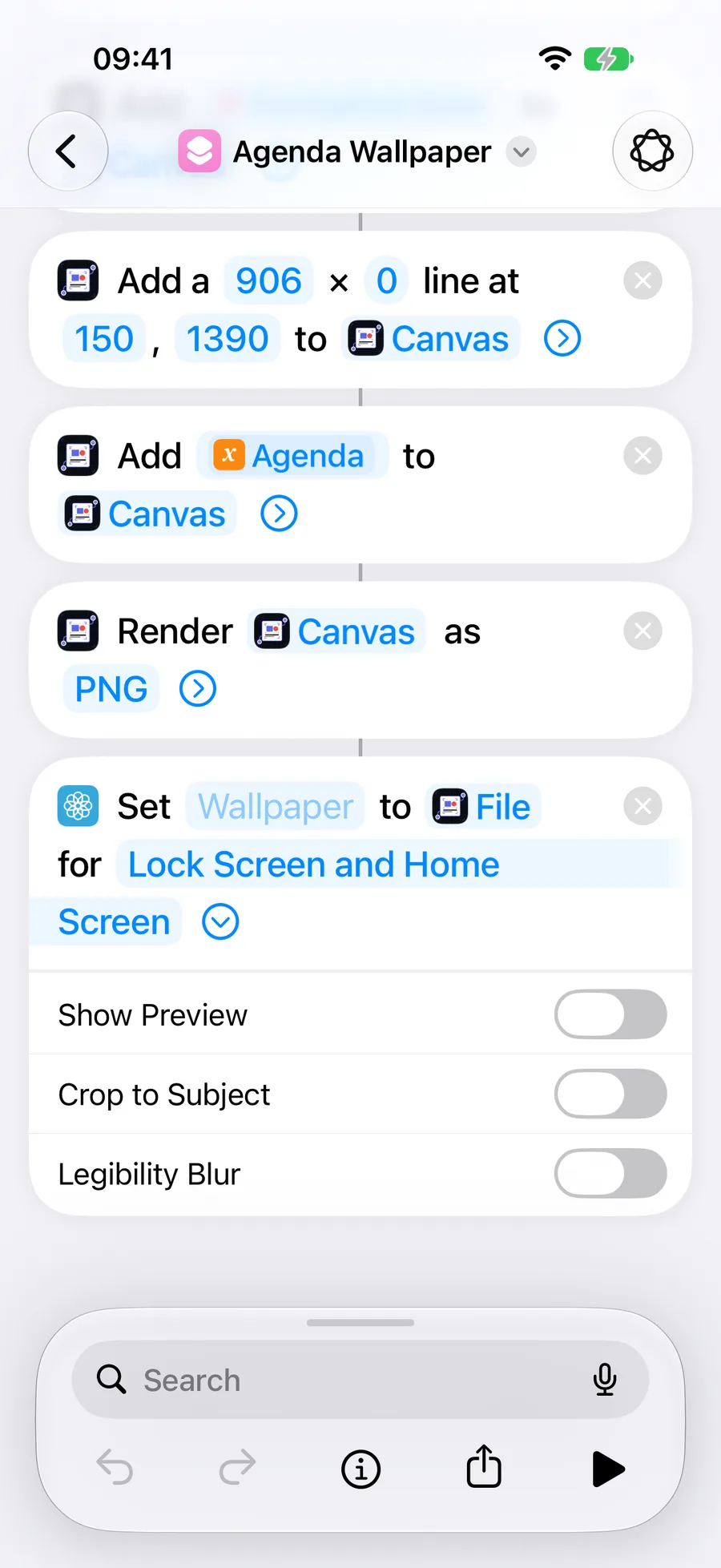
Add Render Canvas. It shows as Render Canvas as PNG; tap the arrow and set File Name to agenda and Overwrite Policy to Replace. Leave Output Scale at 1, so the PNG is exactly 1206 × 2622.
Then add Set Wallpaper Photo. It shows as Set Wallpaper to File for Lock Screen and Home Screen, with the rendered file already connected. Change Lock Screen and Home Screen if you want the agenda on only one of them. If you have several Lock Screens, tap Wallpaper to choose which one to update. Tap the arrow and turn off:
- Show Preview, so the shortcut finishes without asking you.
- Crop to Subject, so iOS doesn’t zoom into part of the image.
- Legibility Blur, so the card stays sharp.
Tap ▶ to run the shortcut. The first run asks for access to your calendars, then asks to allow Agenda Wallpaper to run actions from Shortcut Canvas and to share text items and calendar events with it. Choose Always Allow so the automation in the next step can run without you.
 View full size
9. Update it every morning
In iOS 27, automations live inside the shortcut they run. To refresh the wallpaper every morning:
- In the Agenda Wallpaper editor, tap the search field and choose the Automation category.
- Choose Time of Day. It appears at the top of the shortcut as At Time.
- Tap Time and set it to
06:00. - Tap the arrow and check that Repeat is Every Day and Automation is on. Leave Notify off if you don’t want a notification each morning.
The wallpaper shows the events that existed when the shortcut ran. If your day often changes, run the shortcut again after adding an event, or create a second shortcut with a midday trigger.
 View full size
Make it your own
- Use a template. Shortcut Canvas includes 18 templates. For a single important event, Create Canvas from Template with the Calendar Event Card template turns an event title into a finished design in one action.
- Change the colours. Colours accept
#RRGGBB,#RRGGBBAA, or names such aswhiteandblue. - Add a progress bar. Add Progress Bar draws a bar from a 0–100 value. Use it to show how much of the day, week or a project has passed.
- Add a photo. Add Image from File places a photo from an earlier action, such as Select Photos or Find Photos, with fit, crop and corner radius options. Add it before the card so the card stays on top.
If something doesn’t look right
- The wallpaper is zoomed or cropped: check that the canvas size matches Screen Width and Screen Height from Get Device Details, and that Crop to Subject is off.
- The agenda overlaps the clock or the Lock Screen buttons: move the card by changing its Y value, and move the other elements by the same amount.
- The text is cut off: lower the Limit in Find Calendar Events or the Minimum Scale Factor, or increase the card’s height and the text’s Maximum Height together.
- The card says nothing is scheduled: check the filters in step 1, and that today’s events appear in Calendar.
- The automation stops to ask a question: run the shortcut once yourself and choose Always Allow for each prompt, and make sure Show Preview is off in Set Wallpaper Photo.
Start with the layout above, check it on your Lock Screen, then adjust the colours and sizes until it fits your wallpaper.