 prawel.pl
Connect to GitHub OAuth with Visual REST Client on VS Code and iOS
Register a GitHub OAuth app, store its credentials, and send an authenticated request from VS Code or your iPhone using the same .rest file.
You can sign in to GitHub from Visual REST Client and call its API without copying an access token into your request. This guide sets up one request, GET https://api.github.com/user, which returns the GitHub account you signed in with.
The setup works in Visual REST Client for VS Code and Visual REST Client for iOS. Both read the same .rest file. Each device stores its own credentials and completes its own sign-in.
You’ll need a GitHub account and one of the two apps. Start with the shared setup below, then follow the VS Code steps or the iOS steps.
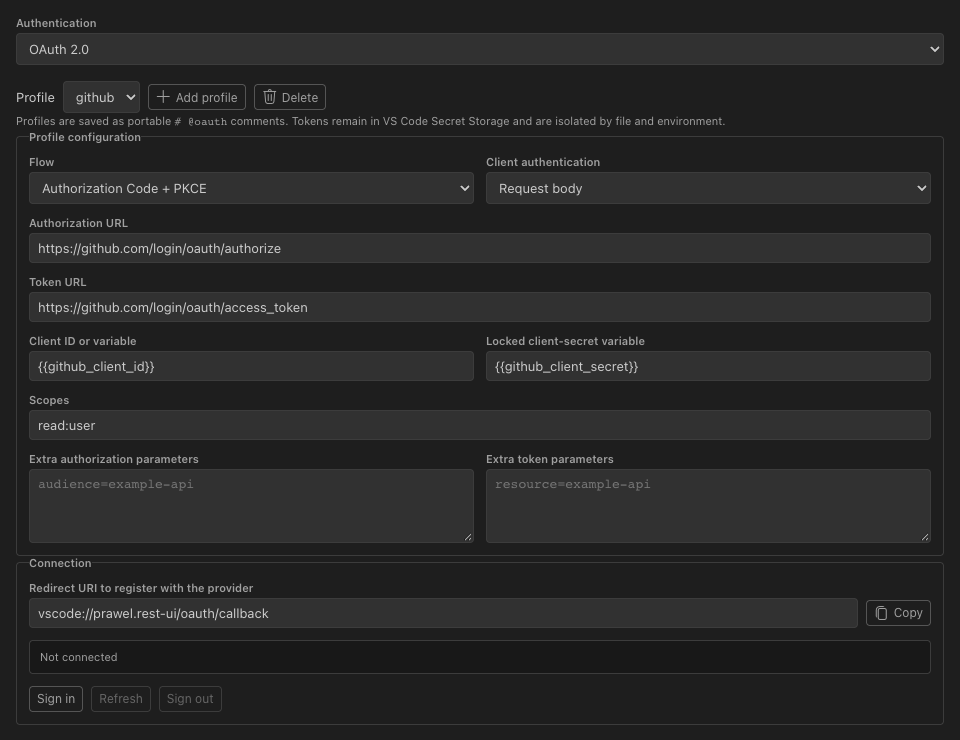
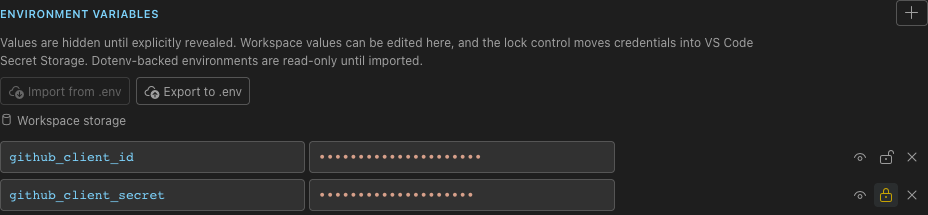
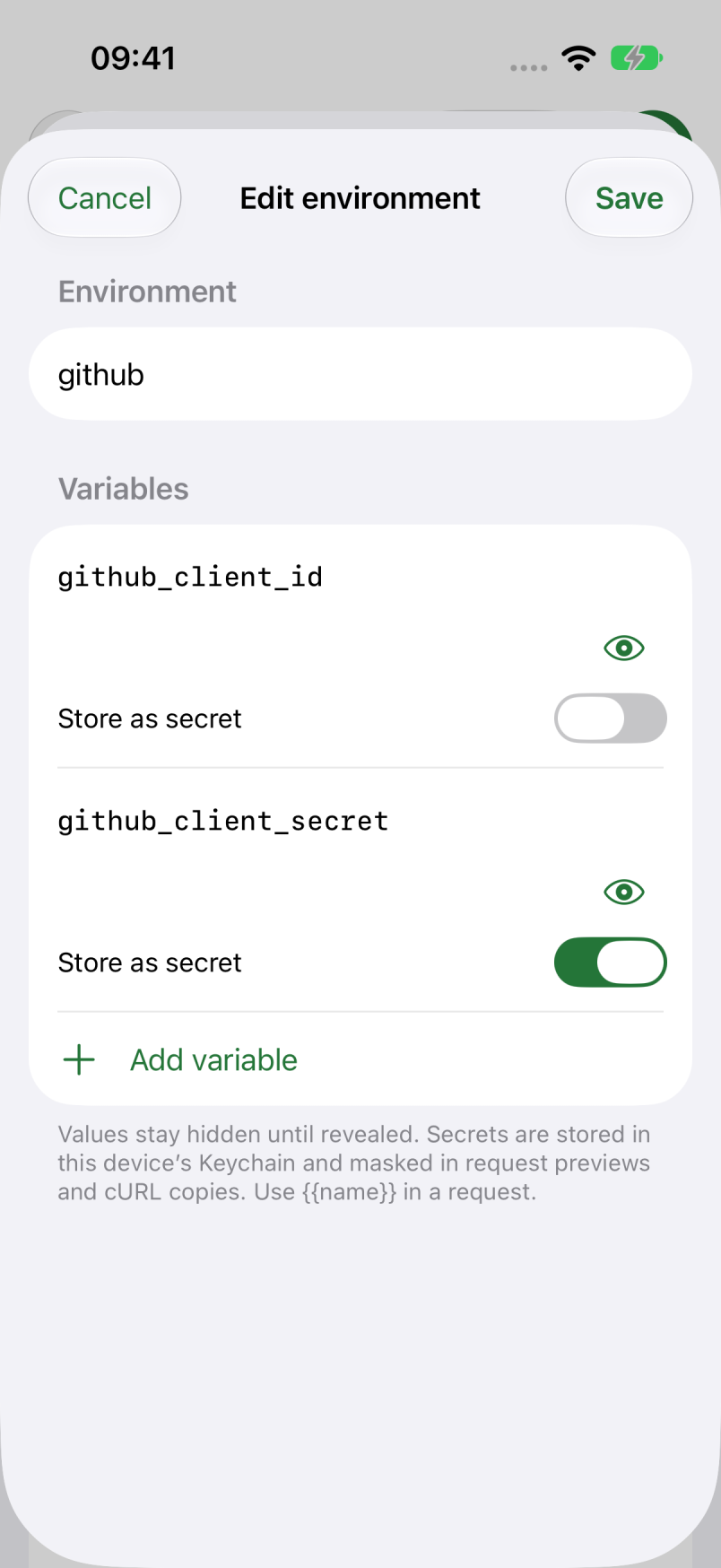
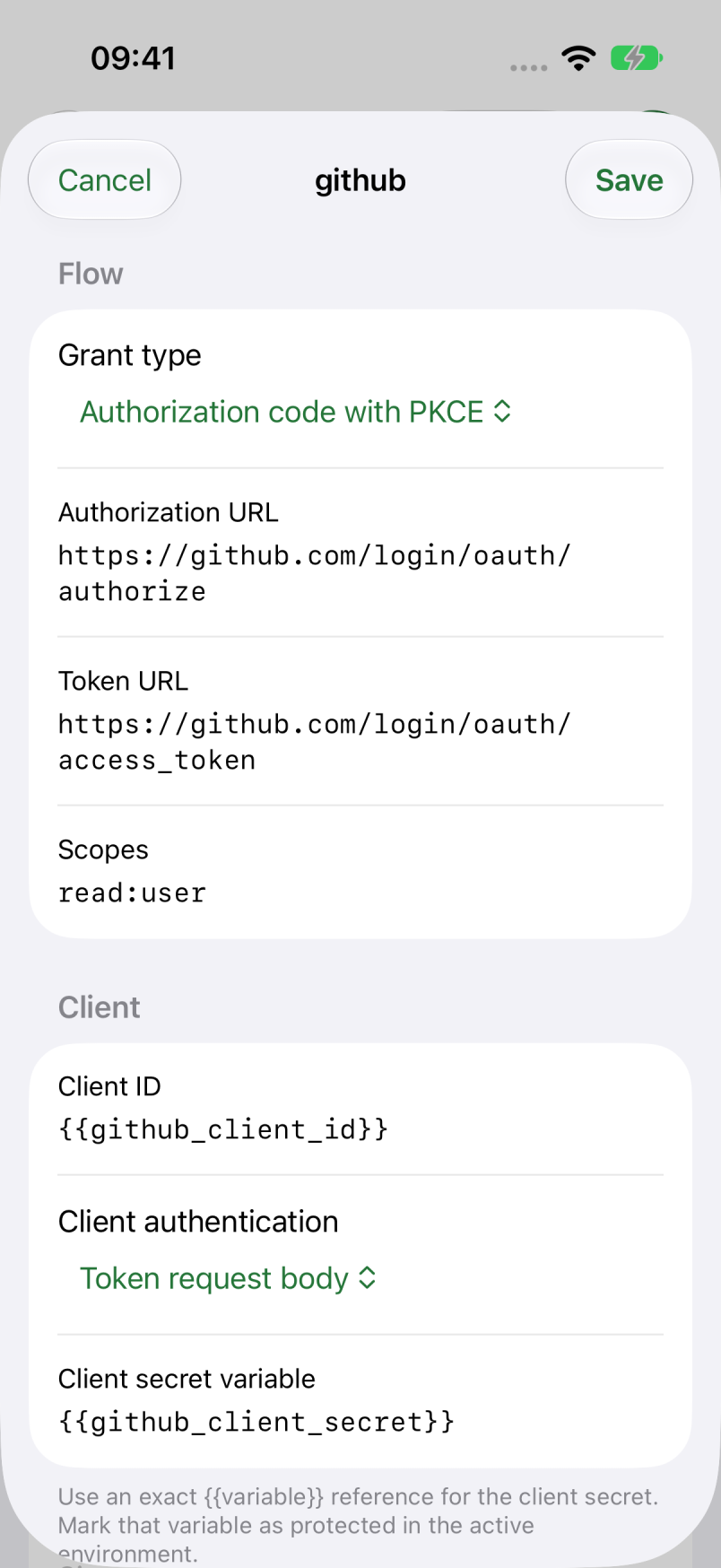
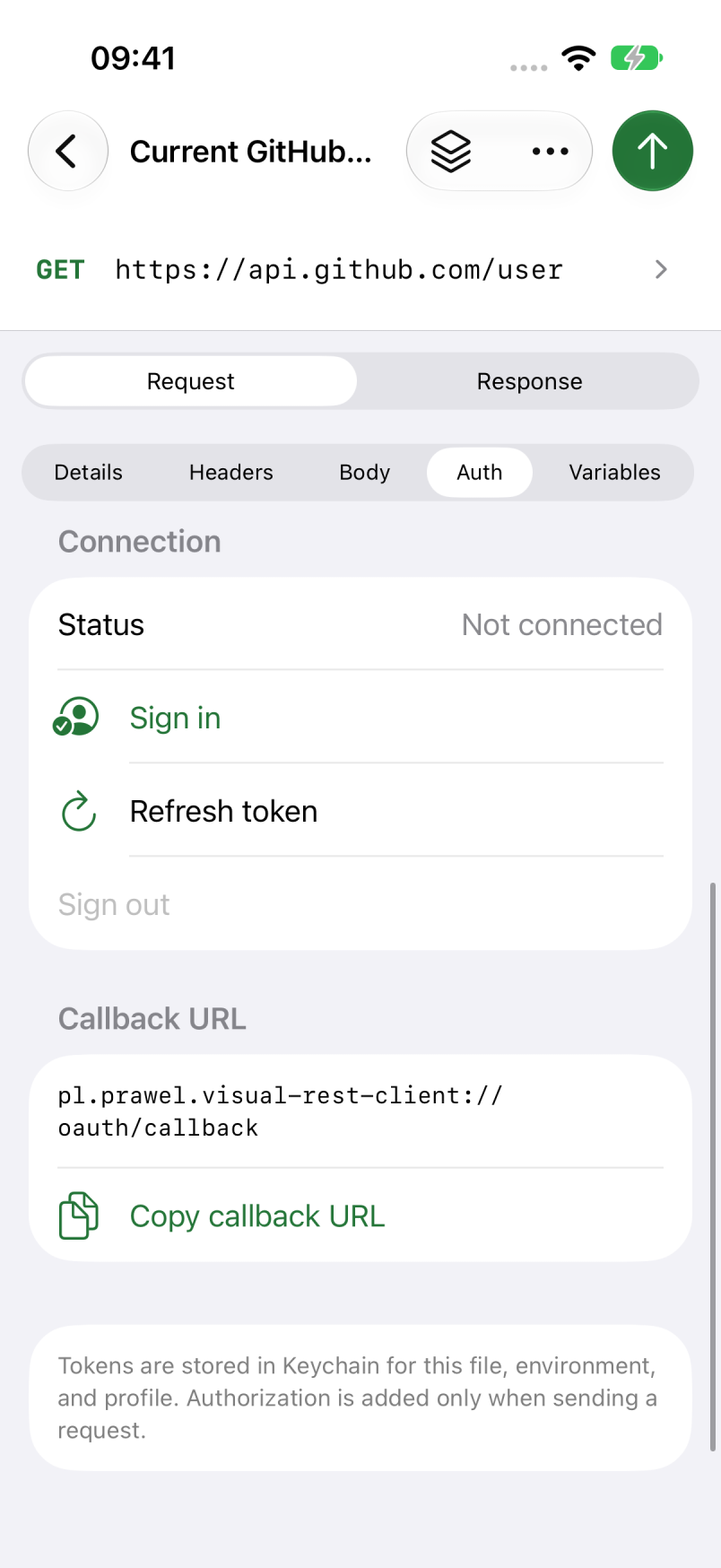
The screenshots show this example’s configuration with demonstration credentials, before signing in. Click an image to open it at full size.
1. Open the example request
Download github-oauth.rest, or save this text in a file with that name:
# @oauth github.flow = authorization_code_pkce
# @oauth github.authorizationUrl = https://github.com/login/oauth/authorize
# @oauth github.tokenUrl = https://github.com/login/oauth/access_token
# @oauth github.scopes = read:user
# @oauth github.clientId = {{github_client_id}}
# @oauth github.clientSecret = {{github_client_secret}}
# @oauth github.clientAuthentication = client_secret_post

### Current GitHub user
# @oauth-use github
GET https://api.github.com/user
Accept: application/vnd.github+json
X-GitHub-Api-Version: 2026-03-10
In VS Code, open the file and run Open Visual REST Client from the Command Palette if it opens as text. On iOS, save the download in Files, then use Open from Files in Visual REST Client’s file menu.
Select Current GitHub user and open Auth. The file supplies a profile named github and attaches it to the request with # @oauth-use github. Leave the {{github_client_id}} and {{github_client_secret}} references as written; you’ll supply their values in an environment.
This example requests read:user to read your profile. It does not request repository access. GitHub’s OAuth scope reference explains the permissions to add if you later need other endpoints. The request also pins a supported GitHub API version.
2. Register your GitHub OAuth app
In GitHub, go to Settings → Developer settings → OAuth apps → New OAuth App. For a first app, the last button may say Register a new application.
Give it a recognizable name, such as Visual REST Client personal testing. For a personal test, you can use your GitHub profile URL as the homepage. Register the callback shown in Visual REST Client’s Auth screen:
| Platform | Callback URL |
|---|---|
| VS Code desktop | vscode://prawel.rest-ui/oauth/callback |
| iOS | pl.prawel.visual-rest-client://oauth/callback |
Copy the value from your app. In VS Code, it appears under Redirect URI to register with the provider; on iOS, use Copy callback URL. A different VS Code edition or remote workspace can produce a different URI.
To use both platforms with one OAuth app, choose Add callback URL and register both values. Leave Enable Device Flow off; this tutorial uses browser sign-in. Register the application, note its Client ID, and generate a client secret from the app’s settings. GitHub’s OAuth app registration guide covers these settings.
The profile uses Authorization Code with PKCE. GitHub still requires a client secret when exchanging the authorization code, so it also sets clientAuthentication = client_secret_post. Visual REST Client sends the secret in the token request body and handles the PKCE values for you. See GitHub’s OAuth authorization documentation.
Connect in VS Code
- With the example open, go to Variables. Add an environment named
githuband select it as the active environment. - Add
github_client_idwith your OAuth app’s client ID. - Add
github_client_secretwith its client secret. Use the variable’s lock control to Mark as secret. Hiding the value with the eye control alone does not protect its storage. - Return to Auth. Check that authentication is OAuth 2.0 and the selected profile is
github. - Confirm Flow is Authorization Code + PKCE and Client authentication is Request body. The downloaded file already sets these values.
- Click Sign in. Complete GitHub’s authorization in your browser and allow it to return to VS Code. Wait for Connected in Auth.
 View full size
The Client ID or variable field should contain {{github_client_id}}, and Locked client-secret variable should contain {{github_client_secret}}. Enter the actual secret only in the environment variable. Protected values and OAuth tokens use VS Code’s SecretStorage.
 View full size
If you configure a profile manually instead of using the example, choose Add profile in Auth and copy the authorization URL, token URL, scopes, and variable references from the file above. Leave the extra authorization and token parameters empty.
Connect on iOS
- Open the example request’s Variables tab. Open the Environment menu and choose Manage environments.
- Tap Add environment, name it
github, and addgithub_client_idwith your OAuth app’s client ID. - Add
github_client_secretwith the client secret. Turn on Store as secret for that variable, then Save. - Select
githubas the Active environment and return to the request. - In Auth, check that authentication is OAuth 2.0 and the profile is
github. Under Edit profile, Grant type should be Authorization code with PKCE, and Client authentication should be Token request body. Keep Client secret variable set to{{github_client_secret}}. - Tap Sign in, complete GitHub’s authorization in the browser sheet, and return to the app. The connection status should become Connected.
iOS stores protected environment values and OAuth tokens in Keychain. If you already connected in VS Code, you still need to enter the credentials and sign in on the phone; transferring the .rest file does not transfer its saved tokens.
 View full size
For a manual setup, use Add profile, name it github, and copy the profile settings from the example. Tap Save before signing in.
 View full size
 View full size
3. Send the request
Send Current GitHub user. A successful response is 200 OK, with JSON containing your GitHub login and id. Compare login with the account you intended to authorize. GitHub documents the response under Get the authenticated user.
Visual REST Client adds the bearer token when sending. Keep the request’s Headers free of a manually entered Authorization header while using the OAuth profile; combining both causes a conflict.
For another request in the same file, select the github profile in Auth, or add # @oauth-use github above its request line. Saved tokens are scoped to the file, environment, and profile. Switching to a different file or environment can require another sign-in.
Both apps can refresh an expiring token when GitHub supplies a refresh token. You can also use Refresh in VS Code or Refresh token on iOS. If you change the requested scopes, sign out and authorize again so GitHub can grant the new permissions.
If sign-in or the request fails
- GitHub rejects the callback: compare the registered URL with the value currently displayed in Auth, including the scheme and slashes. After correcting it, start a new sign-in.
- The client secret is missing or rejected: check the active environment, the exact variable name, its secret/lock setting, and the client authentication mode. GitHub needs Request body in VS Code or Token request body on iOS for this example.
- The environment is read-only: a workspace containing
.envfiles uses those files as its environment source. For this walkthrough, open the example in a fresh folder without.envfiles so you can use managed variables and protected secret storage. - The request returns 401: confirm the profile is connected in the current file and environment. Sign out and sign in again if the token was revoked or can no longer refresh.
- A different endpoint returns 403: check that endpoint’s permission requirements and any organization access restrictions before adding scopes. The example’s
read:userpermission does not grant private repository access.
You can keep github-oauth.rest in version control: it contains settings and variable names. Keep the actual client secret in protected environment storage and let each device manage its own tokens.