 prawel.pl
How to play your own music files offline on iPhone
Add your music files to WavVv, save offline copies, and build a playlist ready for your next trip. Includes screenshots and steps for iPhone.
Albums bought as downloads, recordings you made yourself, or a music folder from your computer can become a library on your iPhone. WavVv Music Player opens audio files from Files, organizes them into songs and albums, and lets you save copies for offline listening. No WavVv account is required.
This guide takes you from a folder of music to a playlist you can play without an internet connection. The screenshots show WavVv 2.1.0 with a sample library. The same tools are available on iPad, with a layout adapted to its larger screen.
What you need
- An iPhone with WavVv installed.
- Audio files accessible in Files, either on the device or through a file provider such as iCloud Drive.
- Enough free storage for the songs you want to keep offline.
- An internet connection while downloading any originals stored in the cloud.
WavVv supports formats including FLAC, MP3, M4A, AAC, WAV, and AIFF. Start with a few files so you can check the whole workflow before adding a larger collection.
 View full size
1. Add files or a music folder
If the music is on your computer, transfer it to a location you can open in Files on the iPhone. You can use AirDrop or your existing file provider.
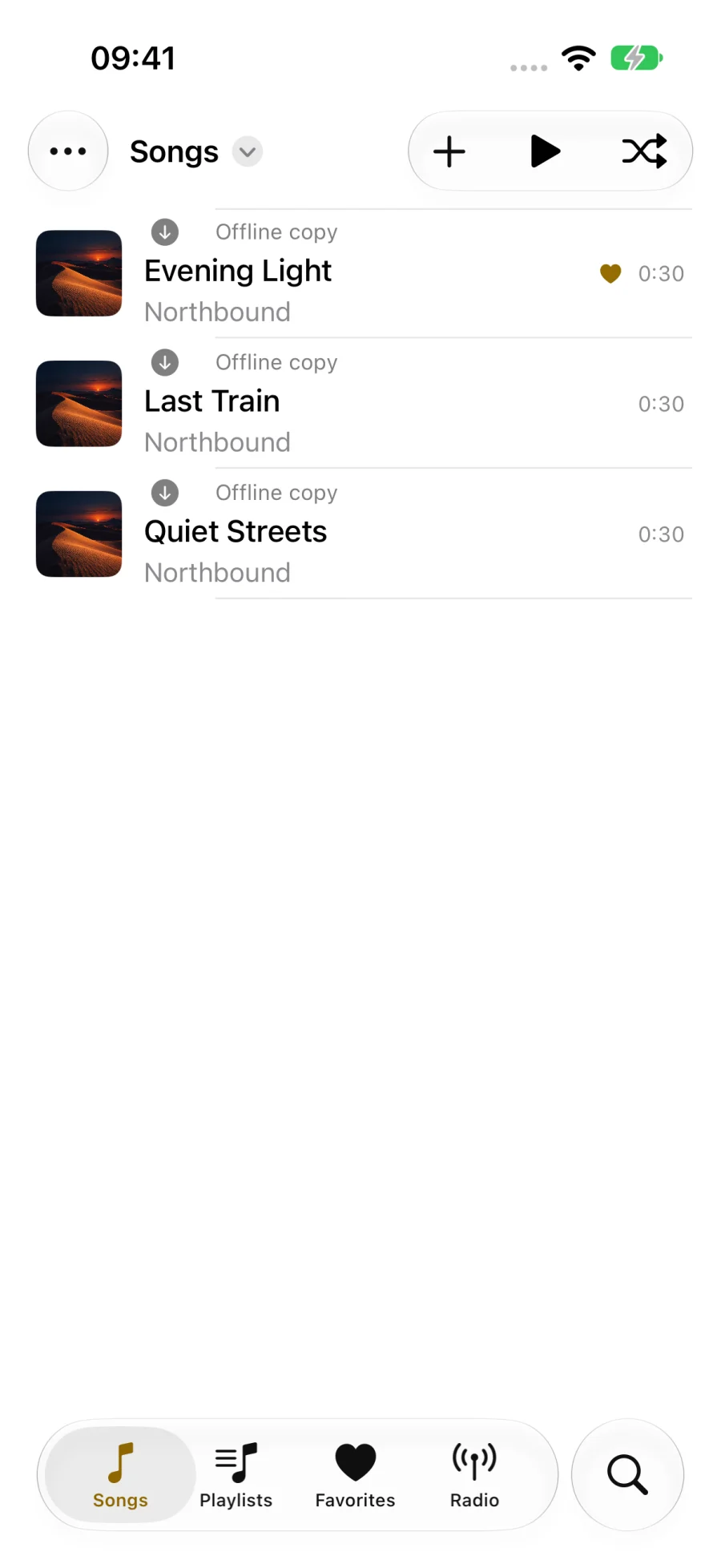
In WavVv, open Songs, then tap Add music, shown as a plus:
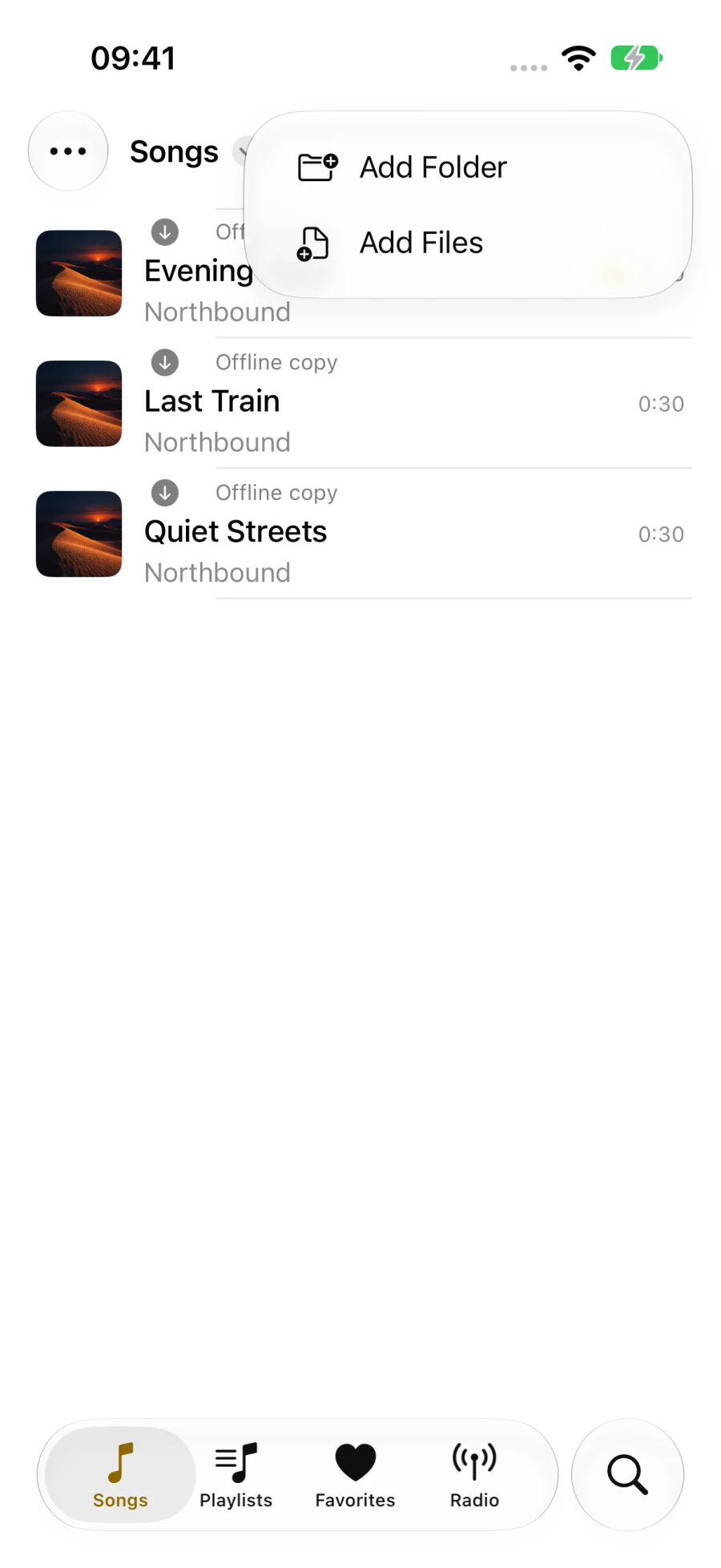
- Choose Add Files to select individual songs, or Add Folder to scan a music folder and its subfolders.
- Select your files or folder in the Files picker and confirm the selection.
- Wait for the scan to finish, then check that the songs appear in your library.
Adding music keeps the originals in their existing location. It does not automatically save a separate offline copy inside WavVv.
For a folder you plan to keep using, open Library Options → Settings later and choose Rescan All after adding more music. Folder scans include subfolders, so you can keep your existing artist and album folders.
 View full size
2. Save copies for offline listening
A song can appear in your library while its original still needs downloading. Even Available in Files or Downloaded in Files describes the file provider’s current state; that provider may later remove its downloaded copy to free space.
For music you want ready for a trip, save a copy inside WavVv:
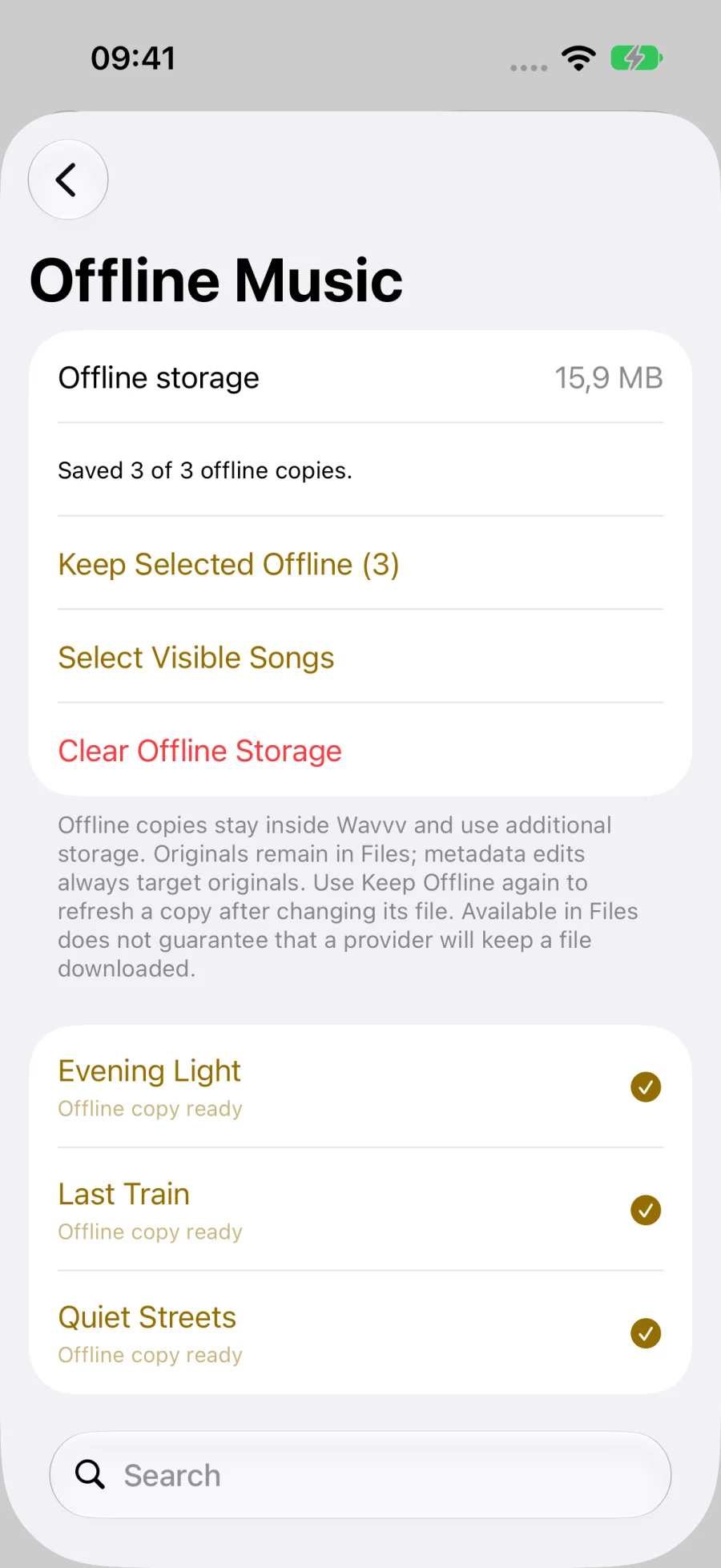
- Open Library Options → Settings.
- Scroll to Storage and open Offline Music.
- Tap the songs you want to save. You can search to narrow the list, or use Select Visible Songs to select the displayed songs.
- Tap Keep Selected Offline. The number on the button shows how many songs you selected.
- Wait for the result and check that each chosen song says Offline copy ready. If a copy fails, read the reported reason and retry while its original is accessible.
These copies use additional device storage. The originals stay in Files, and metadata edits still target the originals. If you change an original file, use Keep Selected Offline again to refresh its offline copy.
To reclaim space, touch and hold a song in Offline Music and choose Remove Offline Copy, or use Clear Offline Storage to remove all app-managed copies. Clearing storage stops playback and keeps your original files, favorites, and playlists.
 View full size
3. Browse your library and check playback
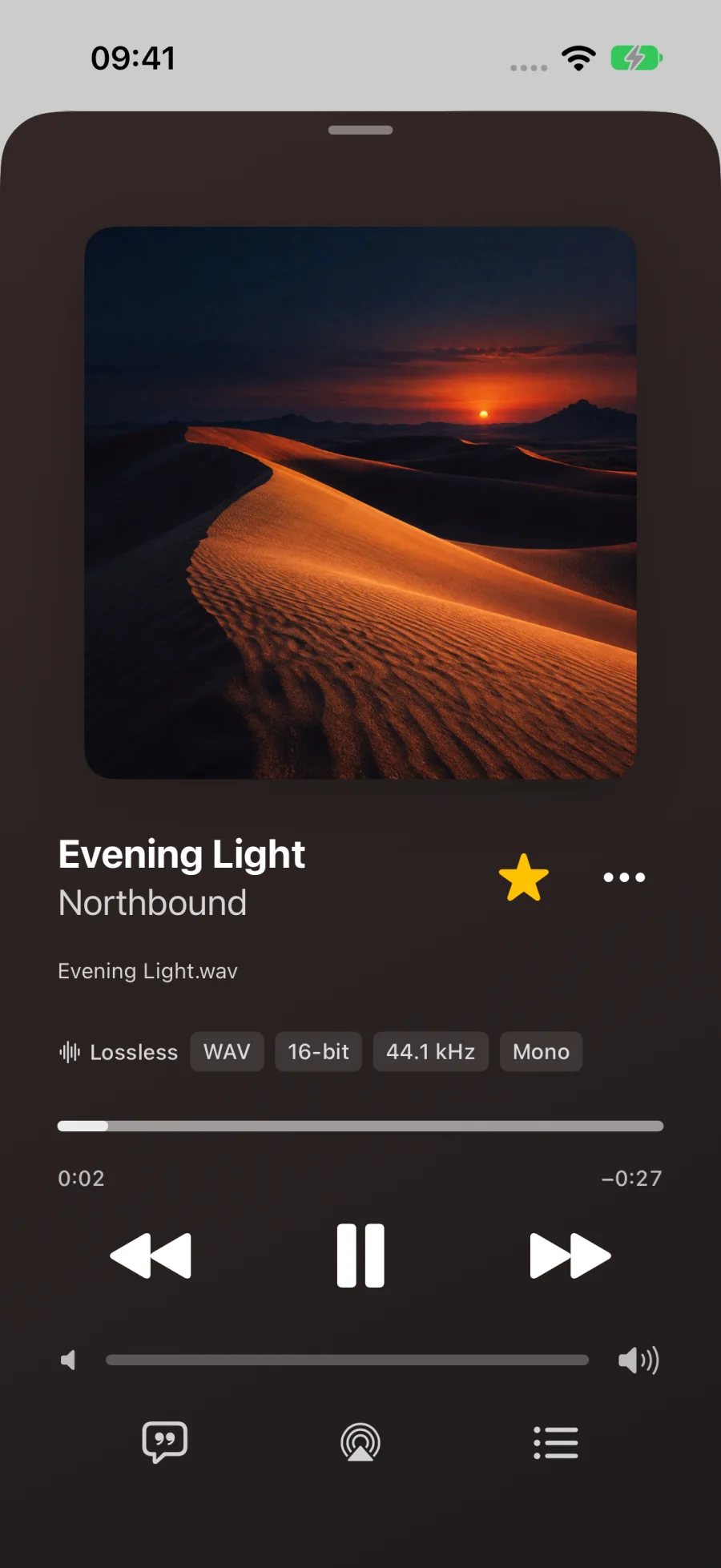
Return to Songs and tap a track to play it. Tap the mini player to open Now Playing, where you can see the filename, playback controls, and available audio-quality details.
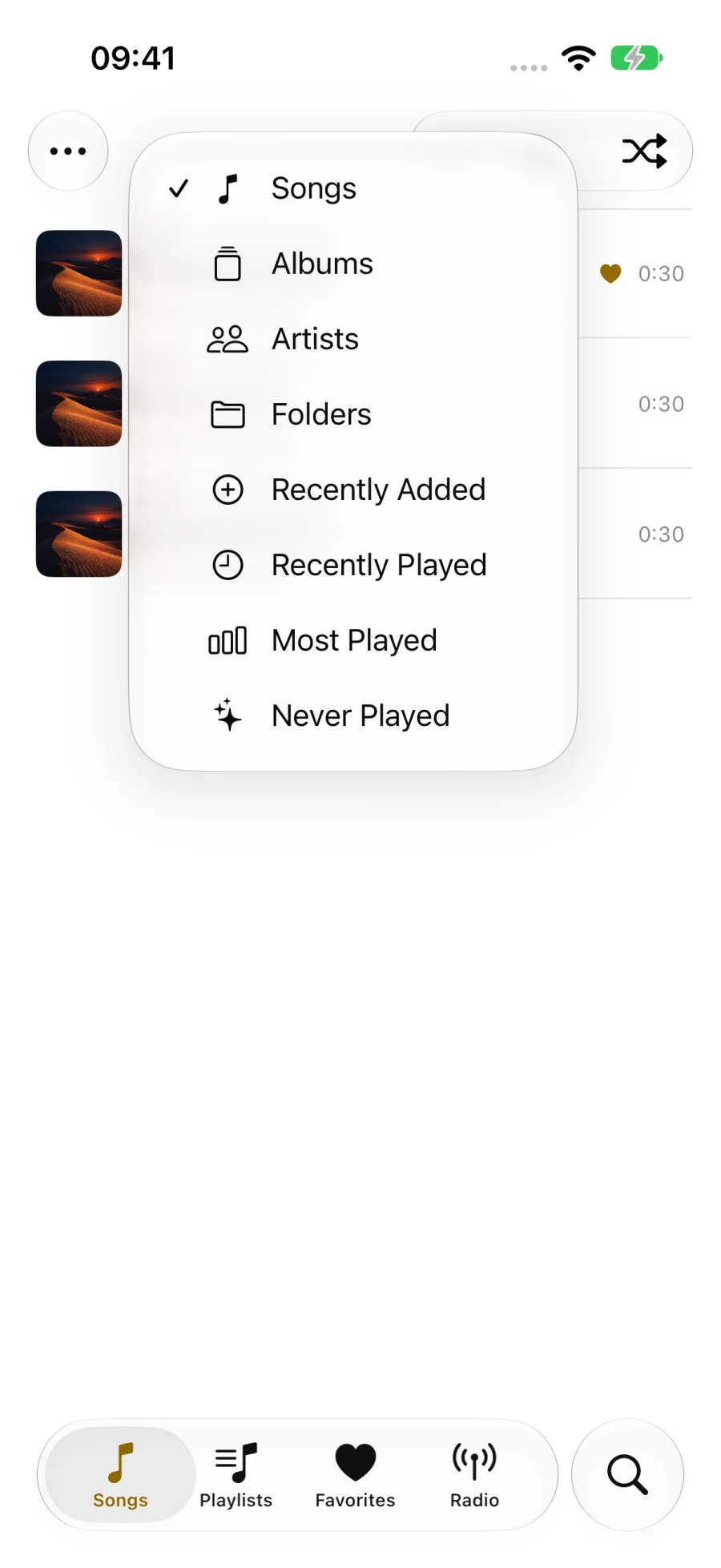
To browse another way, tap the collection name at the top of Songs. Choose Albums, Artists, or Folders, or try listening collections such as Recently Added and Never Played. You can also use Search to find music by title, artist, album, or filename.
Before leaving home, test the songs you saved: turn off both Wi-Fi and cellular data, then play a few tracks from different albums. Leave those connections off while switching songs so you check that more than the current track is ready. Restore your connections after the check.
Internet radio still needs a network connection. Saving a station or adding it to a widget does not make its stream available offline.
 View full size
 View full size
4. Build a playlist with your own cover
Once your songs are available offline, put them into a playlist:
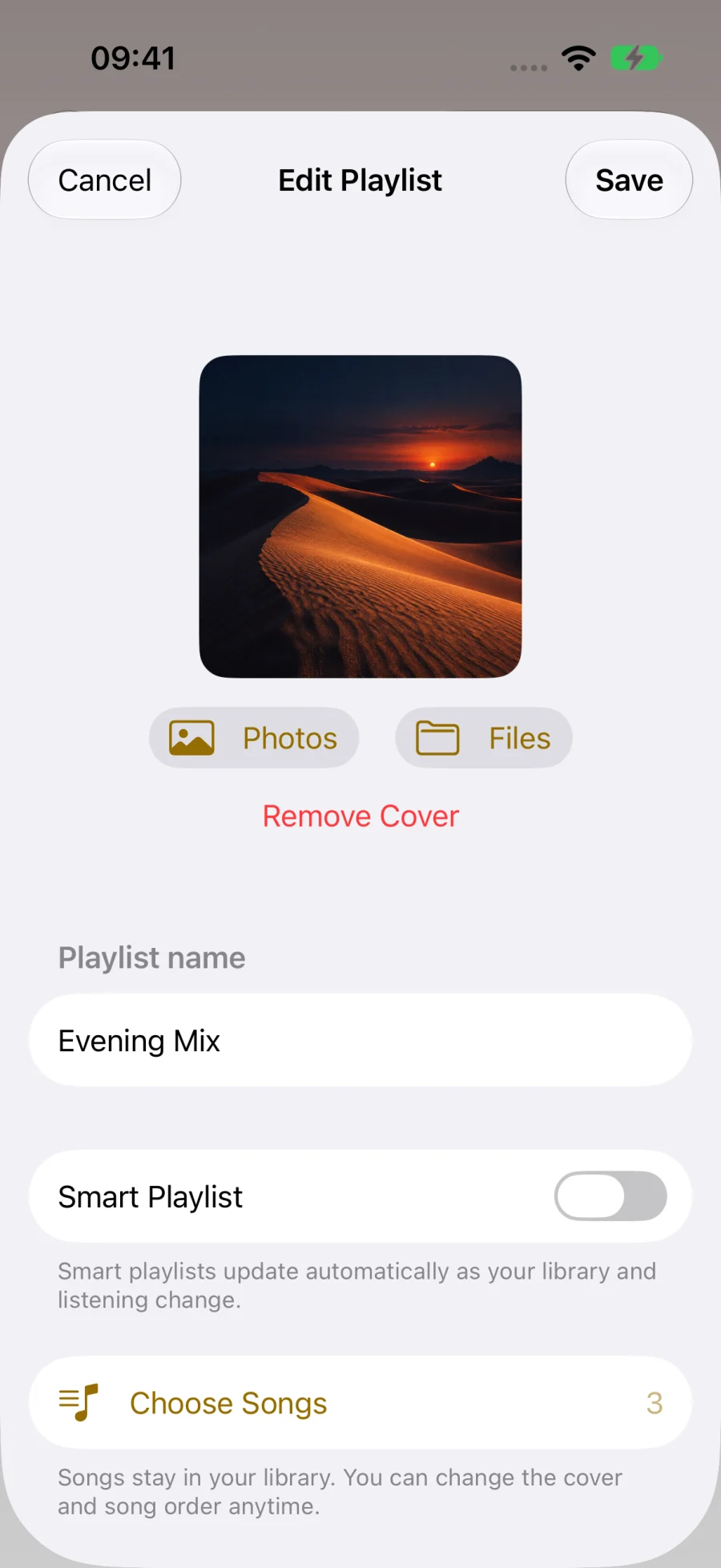
- Open Playlists and tap New Playlist, shown as a plus.
- Enter a name, such as
Evening Mix. - Leave Smart Playlist off for a playlist whose songs you choose yourself.
- Tap Choose Songs, select your tracks, and tap Done with the selected-song count.
- Use Photos or Files to pick a cover image, then tap Save.
You can revisit the editor through the playlist’s Playlist Options → Edit Playlist menu. The screenshot shows the sample Evening Mix with three songs and a custom cover.
Creating a playlist does not download its songs. If you add more tracks later, save their offline copies in Offline Music too.
 View full size
5. Start listening from a widget or Shortcut
For quicker access, add WavVv’s Your Music widget to your Home Screen. Edit the widget’s Collection setting to choose Resume Listening, favorites, or a saved playlist. For this offline workflow, choose music you have already saved on the device.
In Apple Shortcuts, search for WavVv and use Resume Listening, Play Favorites, or Play Playlist or Station. The last action lets you select a saved playlist. Resume Listening continues your last session; if there is none, it tries an accessible song, then a saved station if no songs are available.
If a song will not play offline
- It appears in the library but has no offline copy: reconnect to the internet, open Offline Music, and save it. A library entry alone does not mean its audio is stored locally.
- Saving a copy fails: confirm the original opens in Files and that the iPhone has enough free space, then retry. Check the copy result for the affected song.
- You moved the original: use Locate File in the song’s menu to reconnect it. An existing offline copy can still provide playback while the original is unavailable.
- An offline copy contains old tags or artwork: refresh it after editing the original file.
- A saved radio station will not start: restore a network connection; radio streams are separate from offline music files.
Start with one album, save its copies, and test playback with Wi-Fi and cellular data off. Once that works, repeat for the music you want to take with you.