 prawel.pl
How to sync iPhone Calendar with Mac without iCloud
Use your iPhone calendars in Calendar on your Mac without iCloud or any other cloud account: connect them over local Wi-Fi with ICS Toolkit, or move them with an ICS file.
Your calendar is on your iPhone, but planning a week or moving appointments around is easier with a keyboard and a larger screen. You want to use Calendar on your Mac without turning on iCloud Calendar or signing into any other calendar service on that computer.
ICS Toolkit gives you two ways to do that. Server Mode connects the Mac directly to selected calendars on your iPhone over your local network. Export Calendars saves events to an .ics file that you can transfer and import on the Mac.
One detail about “without iCloud”: ICS Toolkit requires no registration, and neither workflow uses iCloud or requires a new cloud calendar account. For Server Mode, macOS still asks you to add a local CalDAV “account” using credentials supplied by the app. If you want to avoid adding even that connection, use the file transfer method.
What you need
- An iPhone with ICS Toolkit and the calendars you want to access.
- A Mac with Apple’s built-in Calendar app.
- For Server Mode, both devices on the same trusted local network, such as your home Wi-Fi.
- Full Calendar Access for ICS Toolkit, plus Local Network permission if iOS asks when you start the server.
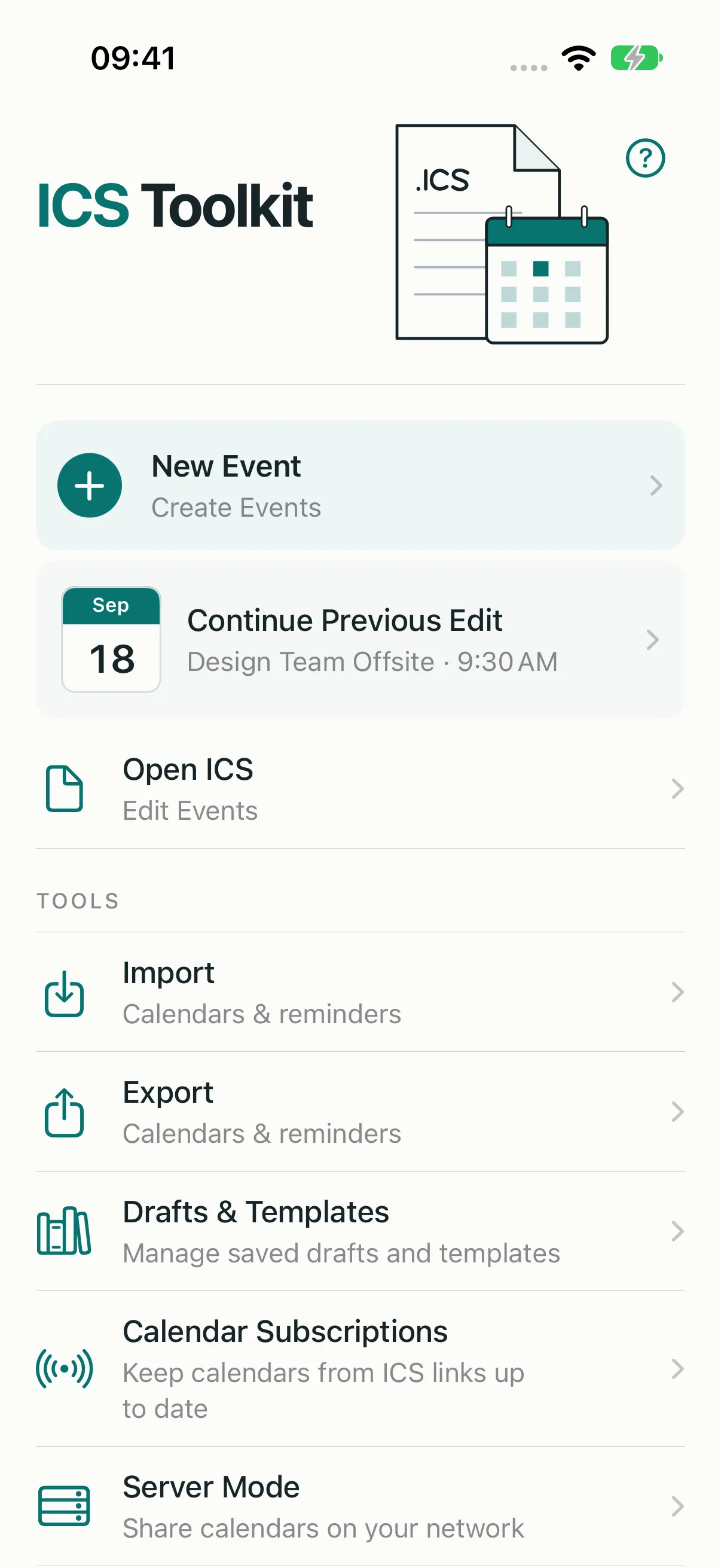
The screenshots in this article show ICS Toolkit 2.0.0 with example calendars. Use the connection values displayed on your own iPhone when following the steps.
 View full size
Which method should you use?
Server Mode and file export are not the only ways to get iPhone calendars onto a Mac without iCloud. Finder can also sync calendars with a connected iPhone from the device’s Info tab. Here is how the three compare:
| Server Mode | ICS file export | Finder sync | |
|---|---|---|---|
| What you add on the Mac | A local CalDAV connection to the iPhone | Nothing; you import a file | Nothing; Finder is built in |
| Edits on the Mac reach the iPhone | Yes, while Server Mode is running | No, the import is a separate copy | When you run the next sync |
| How the devices connect | Same trusted local network | Any transfer, such as AirDrop | USB cable, or Wi-Fi after enabling it in Finder |
| Best for | Working on your iPhone calendars from the Mac | A one-time copy or an archive | A regular sync whenever you connect the iPhone |
Choose Server Mode if you want to edit the iPhone’s calendars from the Mac and see the result on the phone right away. Choose an ICS export if you only need a copy. Finder sync needs no extra app, but changes move only when you sync, and it works with the calendars stored on the Mac and the iPhone themselves.
1. Choose which iPhone calendars to share
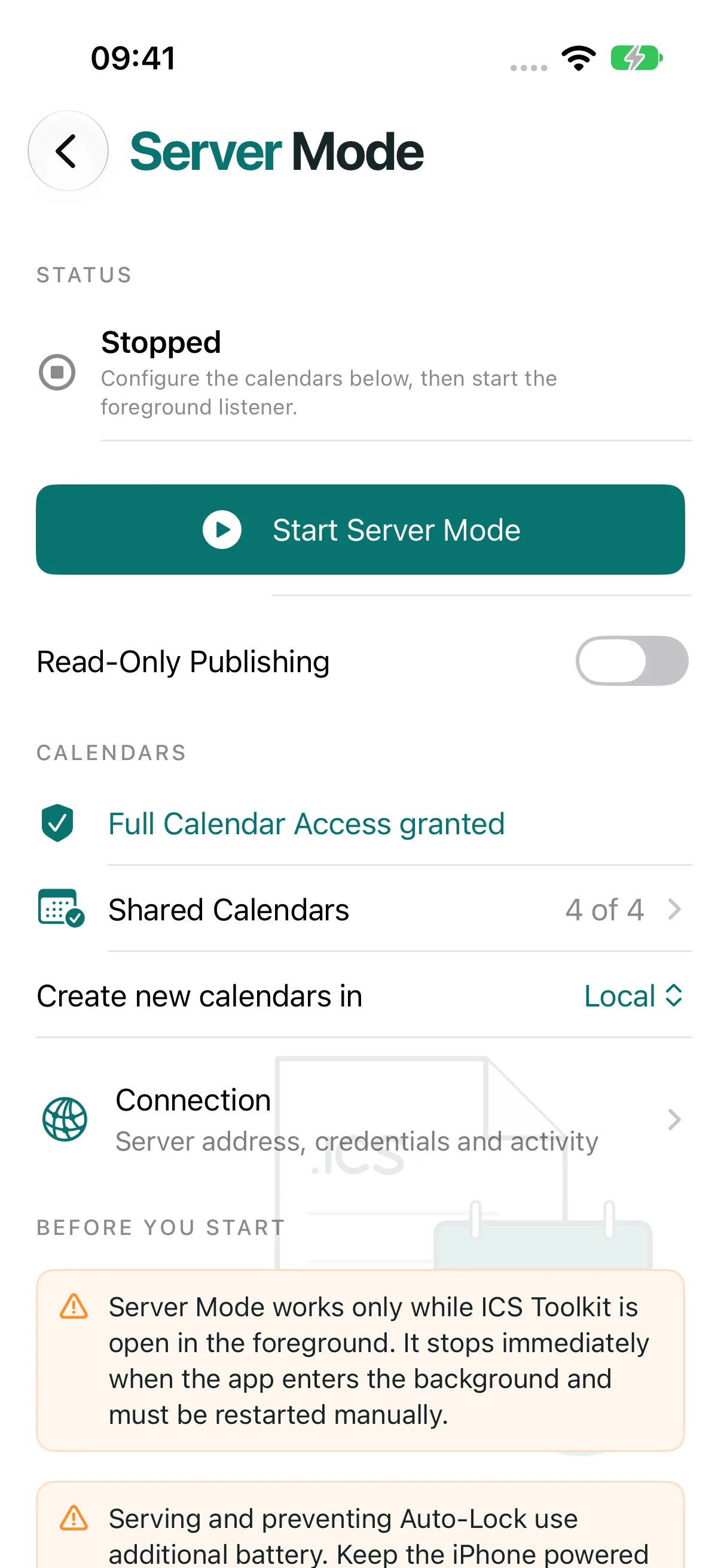
Open ICS Toolkit and tap Server Mode in the Tools list. Allow Full Calendar Access, then open Shared Calendars and select the calendars you want to see on your Mac. You can start with just one. Each selected calendar appears as a separate calendar on the Mac.
The Create new calendars in setting controls where calendars created from the Mac will be saved on the iPhone. Choose the destination you intend to use before starting the server.
If you only want to look at your events on the Mac, turn on Read-Only Publishing. The Mac can then display the shared calendars but cannot change them. Leave it off if you want to add and edit events from the Mac. Calendars that are read-only on the iPhone, such as Birthdays or subscribed calendars, stay read-only either way.
Server Mode works with calendars already available on the phone. If one of those calendars belongs to iCloud, Google, or another provider, its existing sync behavior still applies. The local connection does not turn a cloud calendar into a device-only calendar.
2. Set the hostname and start Server Mode
Open Connection. Before the first start, enter a Local Hostname for the iPhone. Build it from the name in Settings → General → About → Name: use lowercase letters, replace spaces with hyphens, and add .local. For example, “Studio iPhone” becomes studio-iphone.local. The default Port is 5232. You can change these settings only while the server is stopped.
Go back and tap Start Server Mode. Allow Local Network access if prompted. When the status changes to Running, open Connection again. It now shows everything your Mac needs: server address, server path, port, user name, and password.
Keep ICS Toolkit open and active on the iPhone while you connect and work. The server stops when the app goes into the background and must be started again manually. For longer sessions, connect the phone to power and keep Prevent Auto-Lock while serving turned on in Connection.
Server Mode uses HTTP with Digest authentication. Digest protects the password, but calendar names and event contents travel without encryption. Use this connection only on a trusted local network.
 View full size
3. Connect Apple Calendar on the Mac
In Calendar on your Mac, choose Calendar → Add Account → Other CalDAV Account, then set Account Type to Advanced. Apple’s guide to adding calendar accounts describes this setup screen.
Copy the values from ICS Toolkit’s Connection screen into the corresponding fields:
| Mac Calendar field | What to enter |
|---|---|
| User Name | The username displayed in ICS Toolkit. |
| Password | The app’s pairing password. Use Reveal Password, or Copy Password from the Copy menu on the iPhone. |
| Server Address | The Server Address shown after starting Server Mode. It is based on the Local Hostname you entered. |
| Server Path | The Server Path shown by the app, including its slashes. |
| Port | The port displayed on the iPhone. |
| Use SSL | Off, as shown in ICS Toolkit. |
If your setup screen offers an authentication choice, use Automatic or Digest. Complete the setup and leave the iPhone app open while Calendar loads the selected calendars. The first synchronization can take a little time.
These credentials belong to the connection to your iPhone. You do not need to enter an Apple, Google, or Microsoft password. The credentials stay in the iPhone’s Keychain. If you use Regenerate Credentials later, the Mac stops authenticating until you enter the new user name and password in Calendar.
4. Work with your calendar on the Mac
Select one of the shared calendars in Calendar’s sidebar. You can view its events. If Read-Only Publishing is off and the underlying calendar allows changes, you can also create, edit, and delete events from the Mac. Those changes are written back to the calendar on your iPhone.
For a quick check, create a temporary event in a shared writable calendar on the Mac. Give synchronization time to finish. Then open Calendar on the iPhone and check that the event arrived. Switching away from ICS Toolkit stops the server, so reopen the app and start Server Mode again before continuing on the Mac.
When you are finished, tap Stop Server Mode. This is a connection you run while you need it; it does not keep syncing in the background or when your devices leave the local network.
If the Mac cannot connect
- Confirm that ICS Toolkit is still open and Server Mode shows Running.
- Check that both devices are on the same trusted local network and that ICS Toolkit has Local Network permission. A guest network or a VPN on the Mac may keep the devices from communicating with each other.
- Check that the Local Hostname matches the iPhone’s name, with spaces replaced by hyphens and
.localadded. - Compare the server address, path, port, and credentials with the values currently shown in Connection. Check that SSL is off.
- If the connection works but a calendar is missing, check Shared Calendars and Full Calendar Access. Allow time for the initial synchronization.
- If you cannot add or change events from the Mac, check that Read-Only Publishing is off.
- Connection also includes a Connection Checklist, request counts, recent activity, and Share Diagnostics. The diagnostic report excludes credentials and calendar content.
Transfer a calendar without adding an account
If you only need a copy of your events on the Mac, export an ICS file. An .ics file is a calendar document that Apple Calendar can import. This workflow needs no CalDAV connection and no running server.
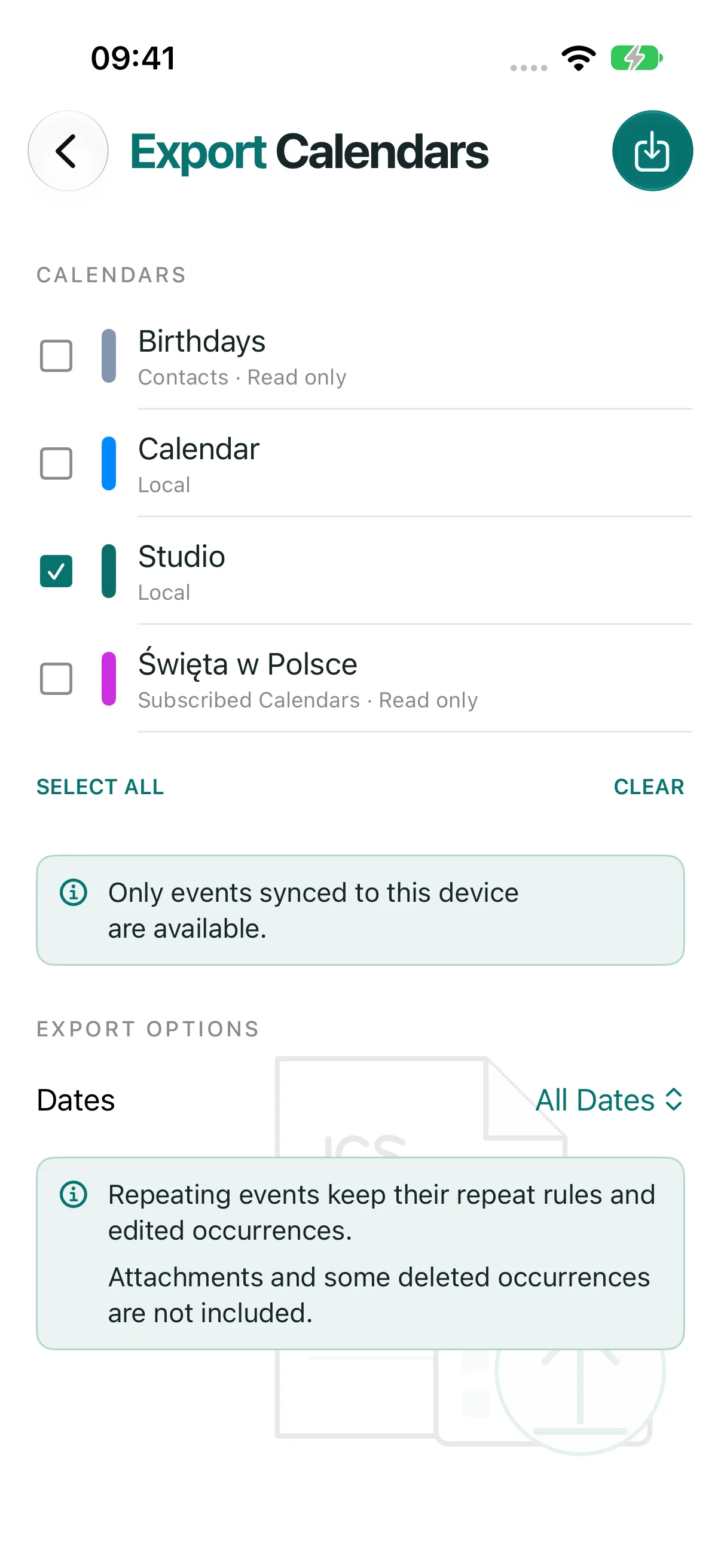
- In ICS Toolkit, tap Export in the Tools list, then Export Calendars. Allow Full Calendar Access.
- Select the calendar to export. Keep Dates set to All Dates for a full copy, or choose Next 12 Months or Custom Dates. If you select several calendars, you can also turn on Combine into One File.
- Tap the export button at the top of the screen to prepare the file. When Files ready appears, check the event count.
- Tap Share ICS Files to send the file to the Mac, for example with AirDrop. You can also choose Save ICS Files and transfer the saved file yourself.
- On the Mac, open Calendar and choose File → Import. Select the
.icsfile. - Choose a destination calendar and complete the import. Use a calendar in On My Mac to keep the imported copy local to that computer.
Apple’s calendar import guide also explains how to create a destination calendar or drag an ICS file directly into Calendar.
An imported file is a separate copy. Later edits on the Mac do not update the iPhone, and later iPhone changes do not update that copy. Repeated imports can also create duplicates, so use a separate destination calendar if you are trying the workflow for the first time.
ICS Toolkit exports the events synced to the iPhone, including events from read-only calendars. With All Dates, repeating events keep their repeat rules and edited occurrences. With a limited date range, each repeating event is exported as individual occurrences within those dates. iOS does not provide event attachments or all deleted repeat exceptions for calendar export. Deleted occurrences may reappear after import, so check repeating events in the imported copy.
 View full size
More ways to use ICS Toolkit
The same app can create an event file, open a multi-event ICS file to find and edit an individual event, or import events into a writable iPhone calendar from a file or a webcal or https link. It can also export and import Reminders lists and keep calendar subscriptions up to date. Its editor supports time zones, repeat rules, alarms, and invitations, with a compatibility review before saving or sharing.
For the workflow in this article, start with one calendar: connect it through Server Mode if you want to work on the same events from the Mac, or export it if a local copy is enough.
Explore ICS Toolkit or get it on the App Store.
Changes to this post
- October 27, 2026: Added a comparison of Server Mode, ICS file export, and Finder sync. Clarified that neither ICS Toolkit workflow uses iCloud.
- October 26, 2026: Updated for ICS Toolkit 2.0.0. Replaced all screenshots. Added the Local Hostname step, the Connection screen, and Read-Only Publishing to the Server Mode instructions, plus new troubleshooting tips. Updated the export steps for the new Export menu, date ranges, and prepare button. Mentioned the Reminders tools and calendar subscriptions.
- September 14, 2026: First published, with screenshots of ICS Toolkit 1.2.2.