 prawel.pl
How to read your Calibre library on iPhone without Kindle
Export your Calibre books to iCloud Drive and read them on iPhone with E-book Folio: series, covers and reading progress, with no cable, no Kindle and no account.
Calibre is where many people keep their e-books, but getting those books onto an iPhone is awkward. Apple no longer lets Calibre send books to an iPhone over a USB cable, and the Kindle app doesn’t open EPUB files directly.
This guide uses a folder instead. You save your books from Calibre into iCloud Drive, then link that folder in E-book Folio, an EPUB reader for iPhone and iPad. Folio finds every EPUB in the folder and its subfolders, shows the covers, groups books that Calibre marked as a series, and keeps your place in each book. There is no account and no sign-in, and your books aren’t uploaded anywhere.
The screenshots show E-book Folio 1.2 on an iPhone 17 with iOS 27, and a small library of demo books saved from Calibre. They follow your device’s appearance: with Dark Mode on, you see Folio in Dark Mode, with the reader on its Night theme.
What you need
- A Mac or Windows PC with Calibre and your books in it.
- iCloud Drive on that computer: built into Finder on a Mac, or iCloud for Windows on a PC.
- An iPhone or iPad with E-book Folio installed, signed in to the same iCloud account.
- Books in EPUB format without DRM. Folio opens EPUB only, and can’t open books with copy protection.
1. Save your books from Calibre to iCloud Drive
Don’t move your whole Calibre library into iCloud Drive. Calibre’s FAQ advises against keeping a library on network or synced storage, because its database can be damaged when a sync tool and Calibre run at the same time. Save copies of the books instead:
- In Finder (or File Explorer on Windows), create a folder in iCloud Drive, for example
Calibre Books. - In Calibre, select the books you want on your iPhone. Press Ctrl+A (⌘+A on a Mac) to select all of them.
- Right-click the Save to disk button in the toolbar and choose Save only EPUB format to disk. The menu names your preferred output format, which is EPUB unless you changed it.
- Choose the
Calibre Booksfolder you created.
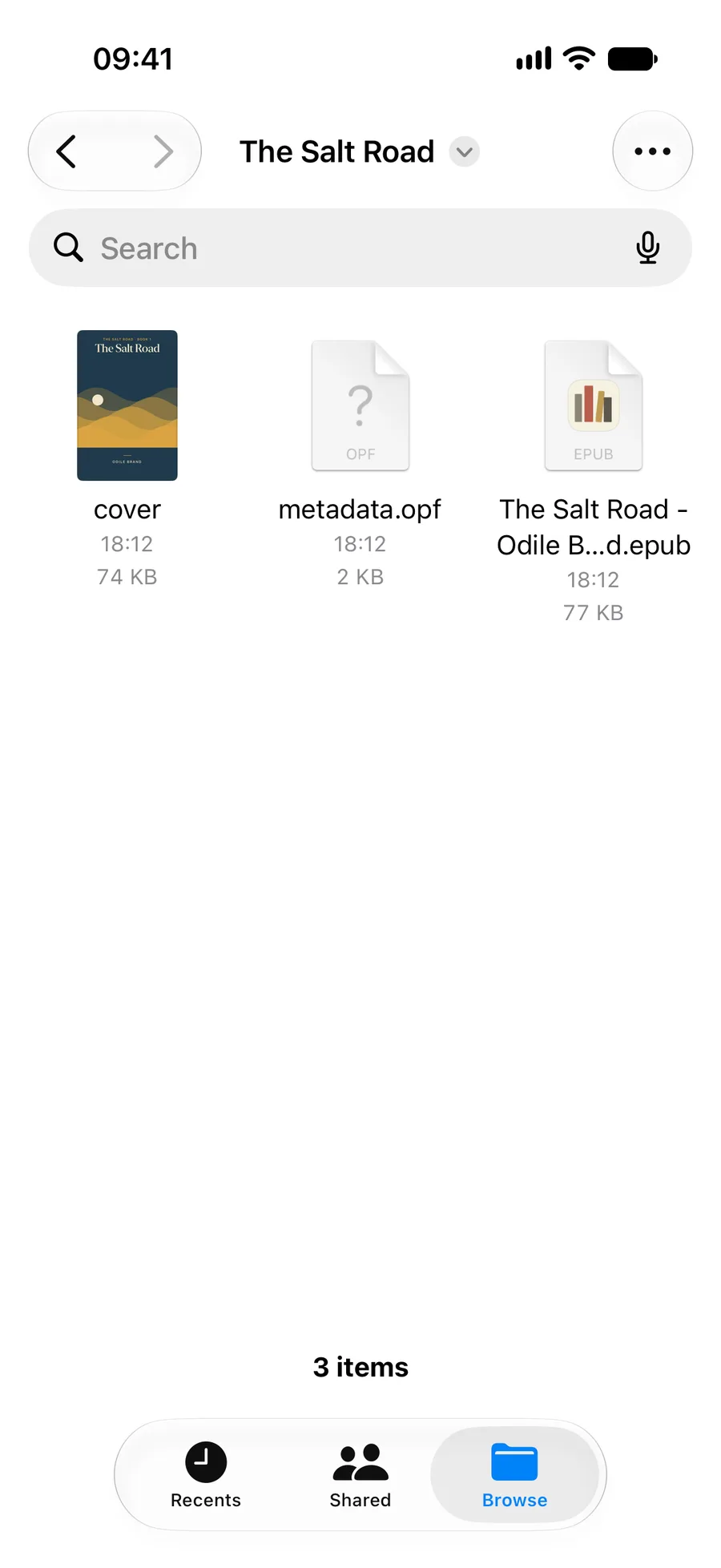
Calibre writes one folder per author and one per book inside it, named the way you see them in Calibre. Each book folder holds the EPUB along with cover.jpg and metadata.opf files. Folio reads the EPUB and ignores the other two, so you don’t need to delete anything. Calibre also writes the book’s metadata into the EPUB, including the series name and number Folio uses to group series.
If some books are only in MOBI or AZW3, select them and use Convert books with EPUB as the output format before saving.
2. Check that the folder reached your iPhone
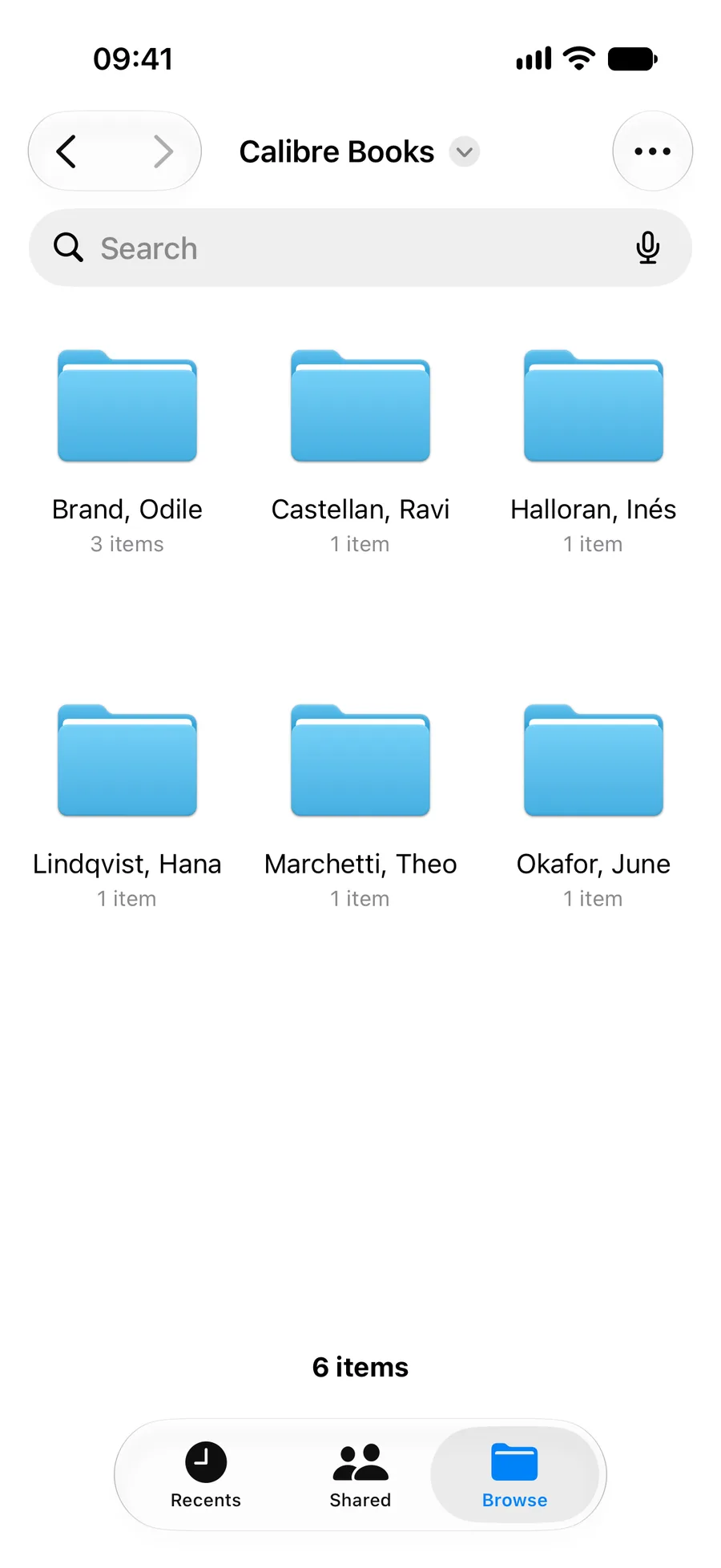
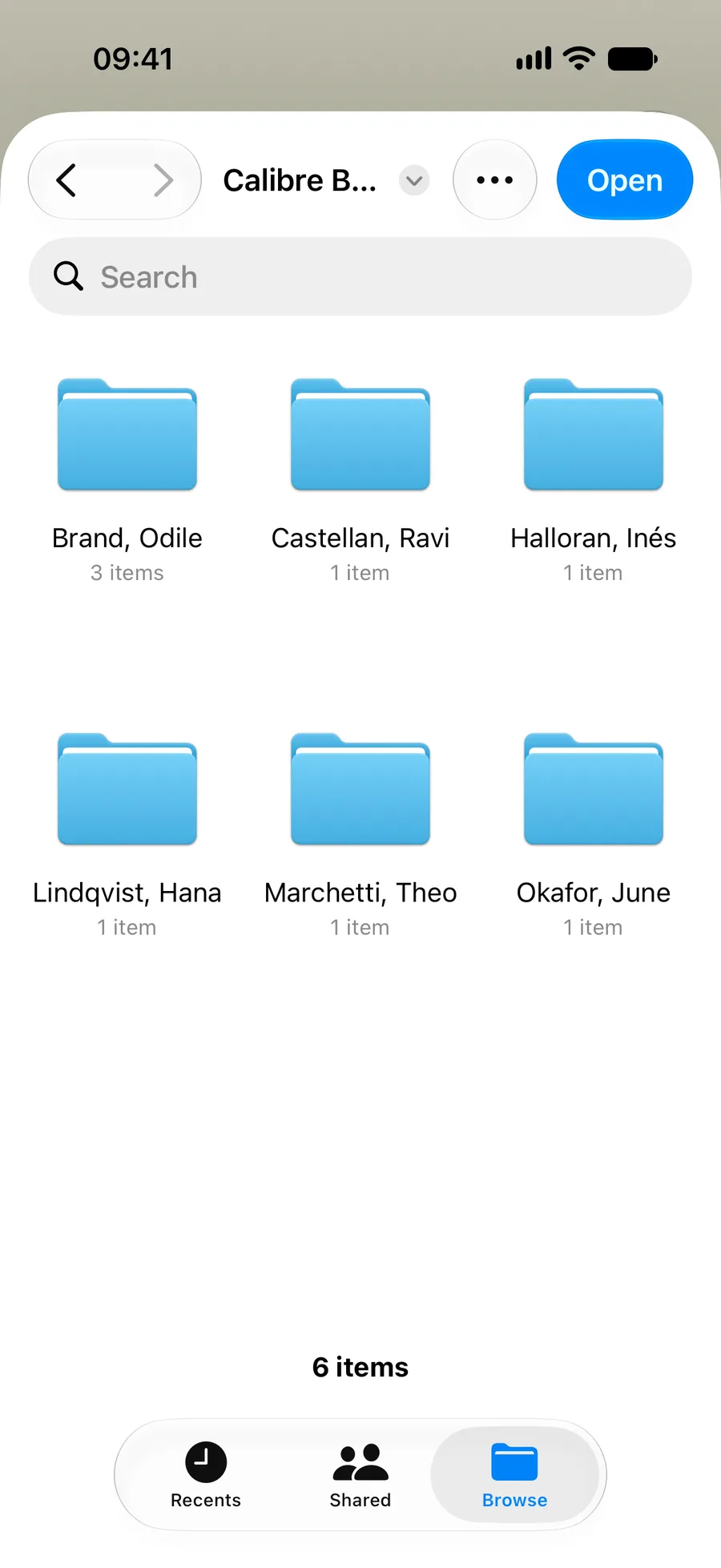
Open the Files app on your iPhone, tap Browse, then iCloud Drive, and open Calibre Books. You should see one folder for each author, named last name first, as in Calibre.
A large library can take a while to upload from the computer. Folders that are still syncing show a progress indicator in Files. You can link the folder before every book has arrived and rescan later (see step 6).
The screenshots in this guide use a folder in On My iPhone. That works the same way, if you’d rather move books to the phone with AirDrop or a cable and the Finder.
3. Link the folder in E-book Folio
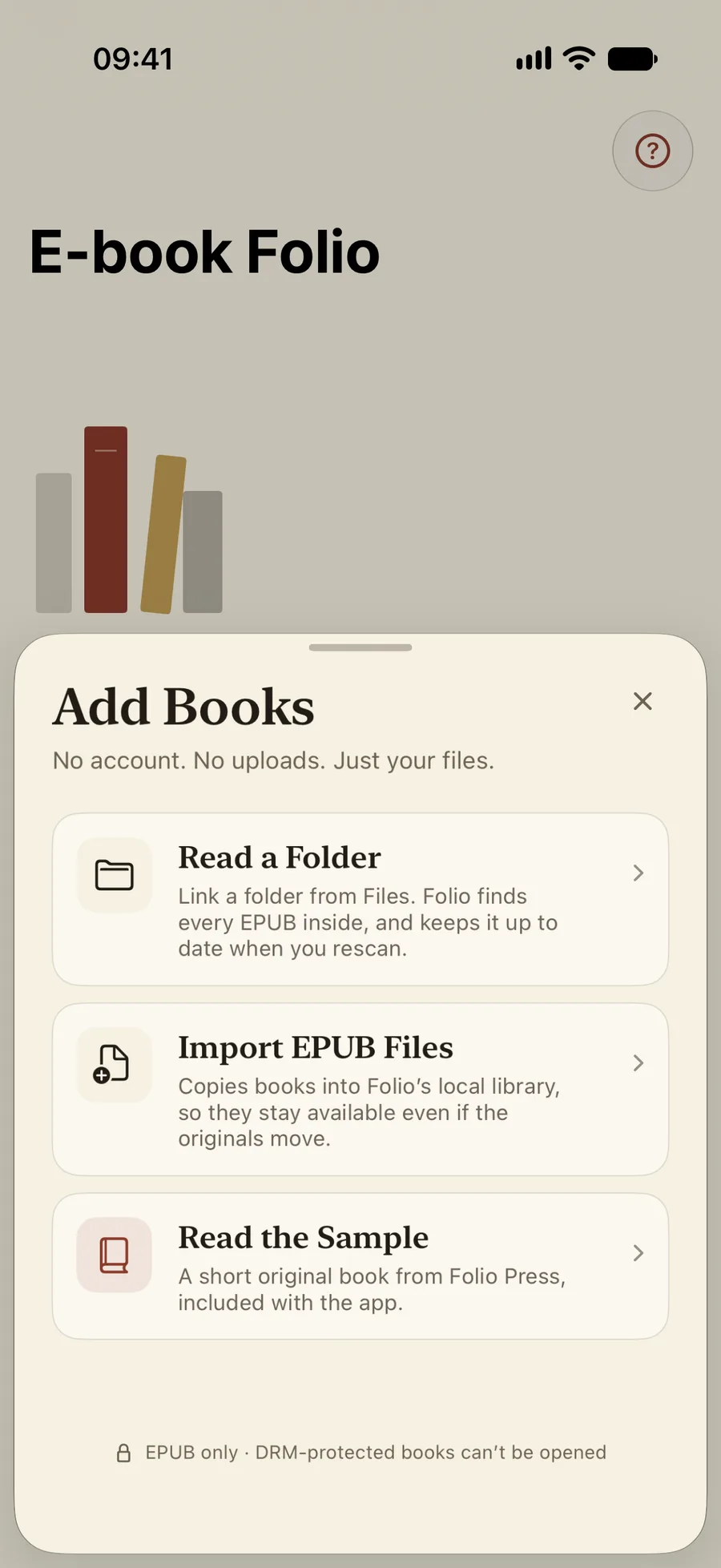
- Open E-book Folio. On an empty Library, tap Add Books. If you already have books, tap the plus in the top-right corner.
- Choose Read a Folder.
- In the Files picker, go to Browse → iCloud Drive and open
Calibre Books. Choose the top folder you saved into, not a single author’s folder. - Tap Open.
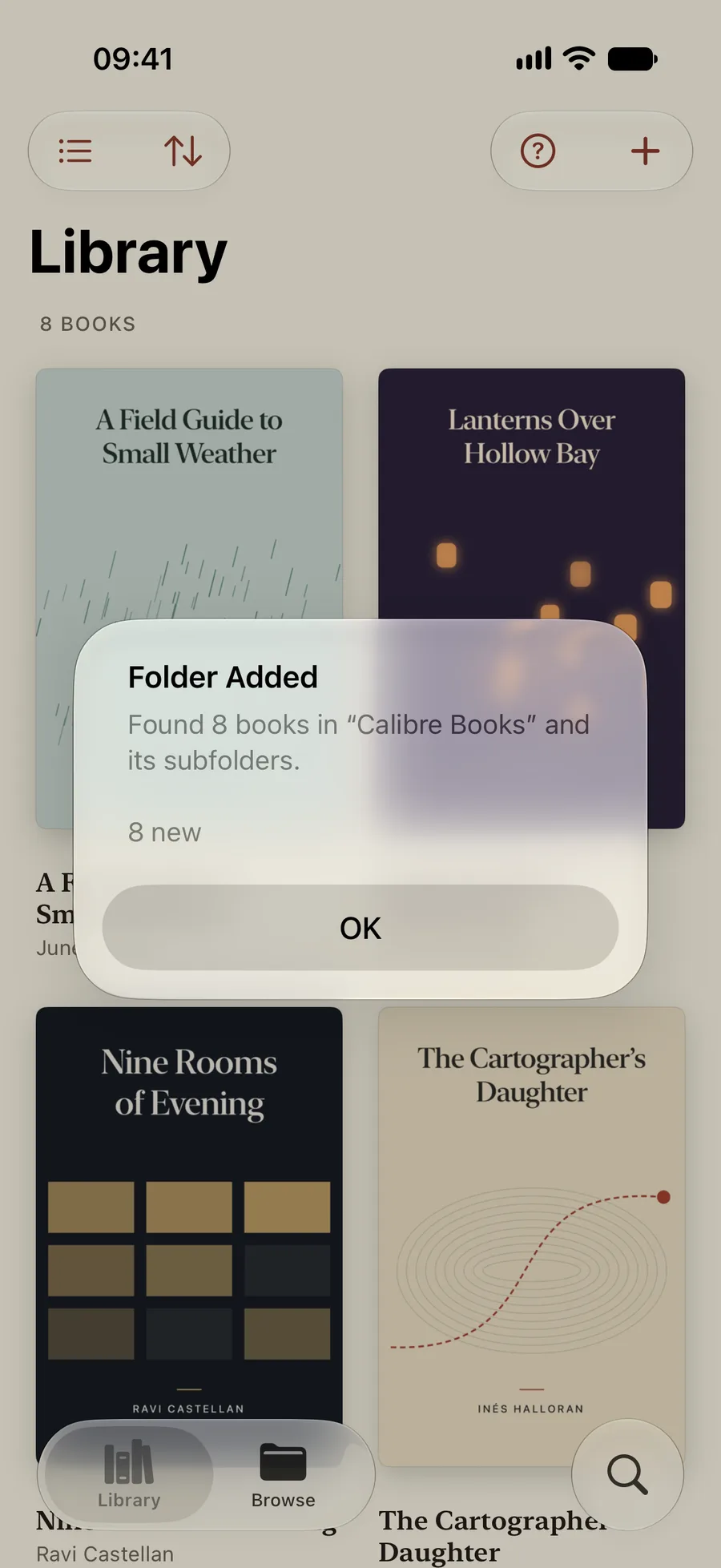
Folio scans the folder and every subfolder in it. When it finishes, a summary tells you how many books it found and how many are new. If a book can’t be read, for example because it has DRM, the summary counts it as a file that couldn’t be read.
The books stay where Calibre saved them. Folio reads them from that folder and keeps its own copy of what it needs to show covers, contents and search, so it doesn’t duplicate your library in iCloud.
4. Find your books and series in the Library
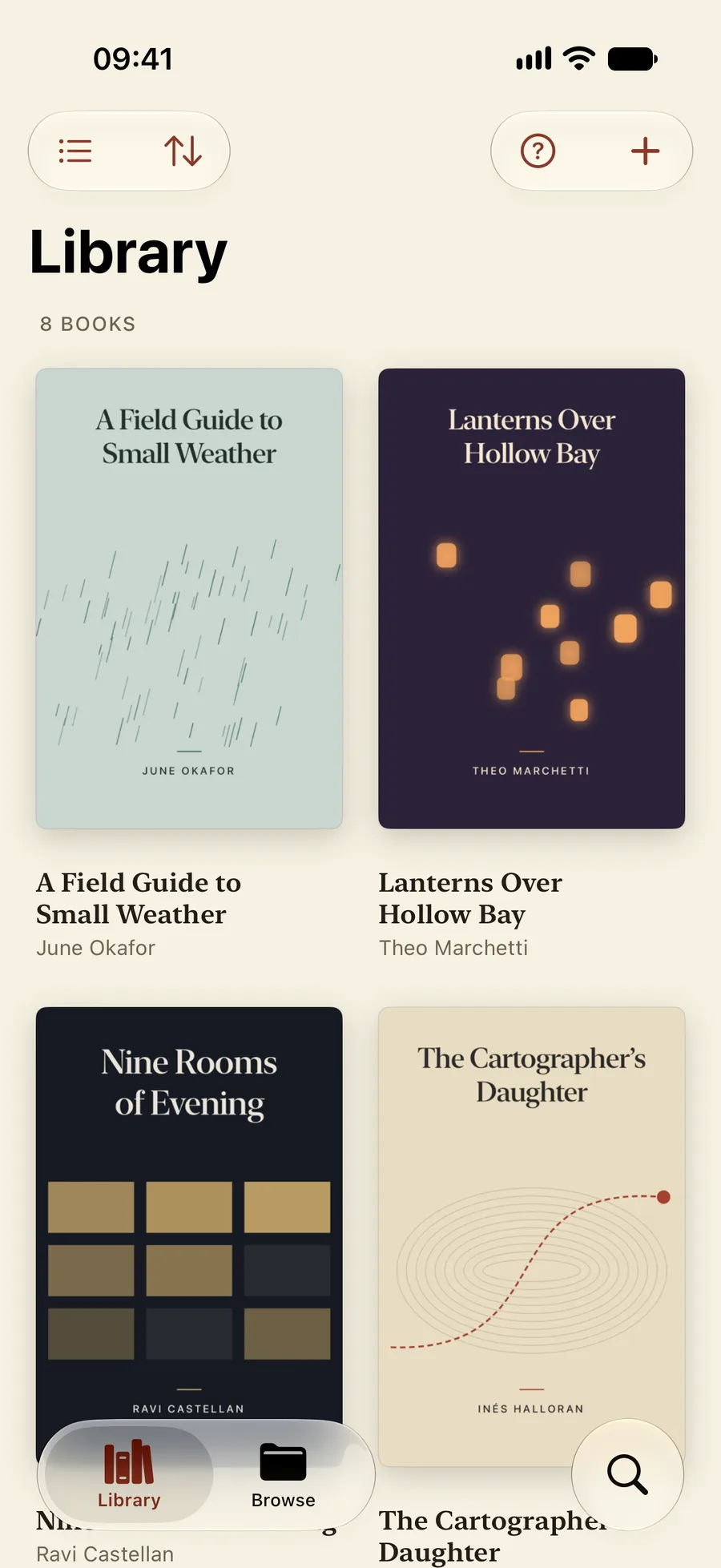
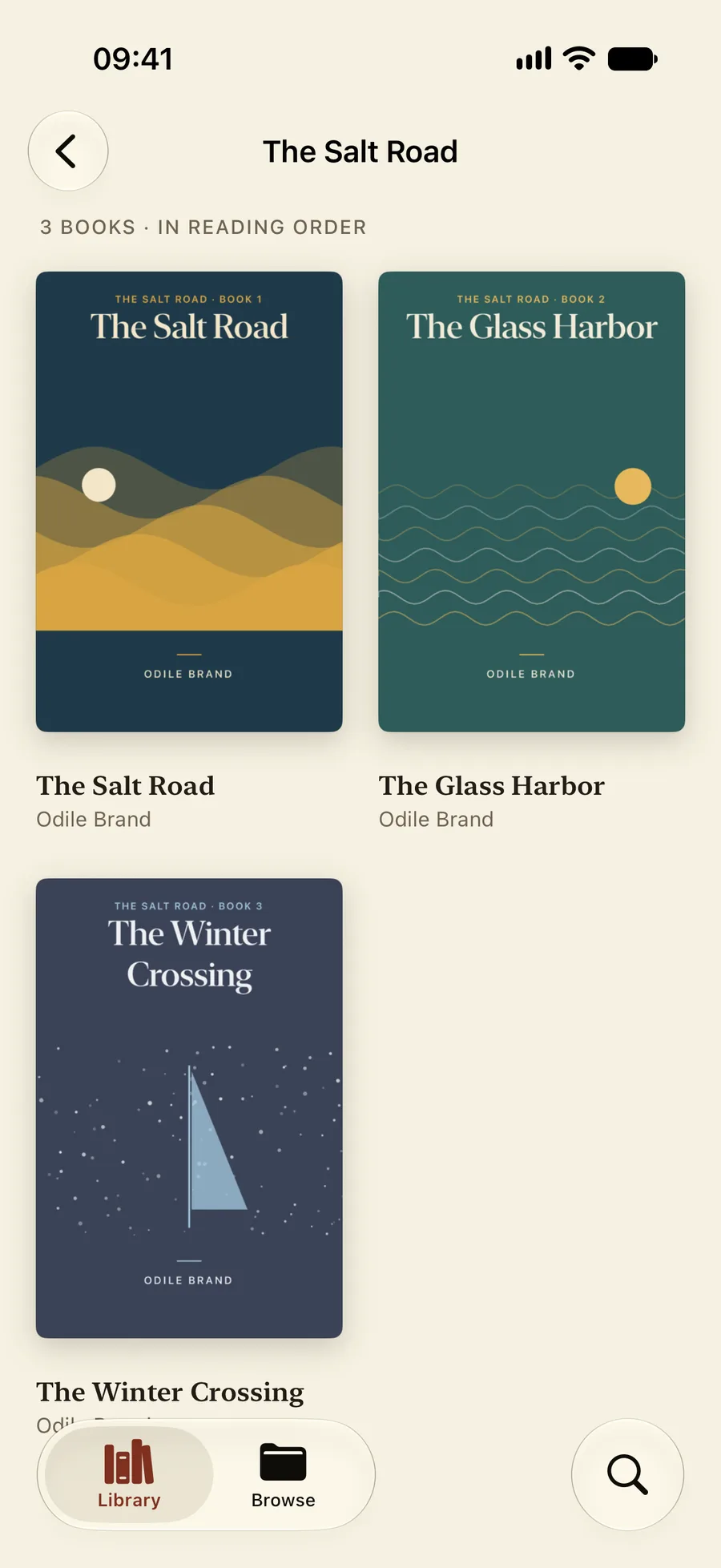
The Library shows each book with the cover Calibre saved in the EPUB. It is sorted by series name at first, and books that share a series are shelved together as one stack. Tap the stack to see the books in reading order, numbered as they are in Calibre.
Use the buttons at the top of the Library to switch between the grid and a list, or to sort by recently read, recently added, title or author instead. Search, at the bottom right, finds books by title or author.
5. Read, and make the pages your own
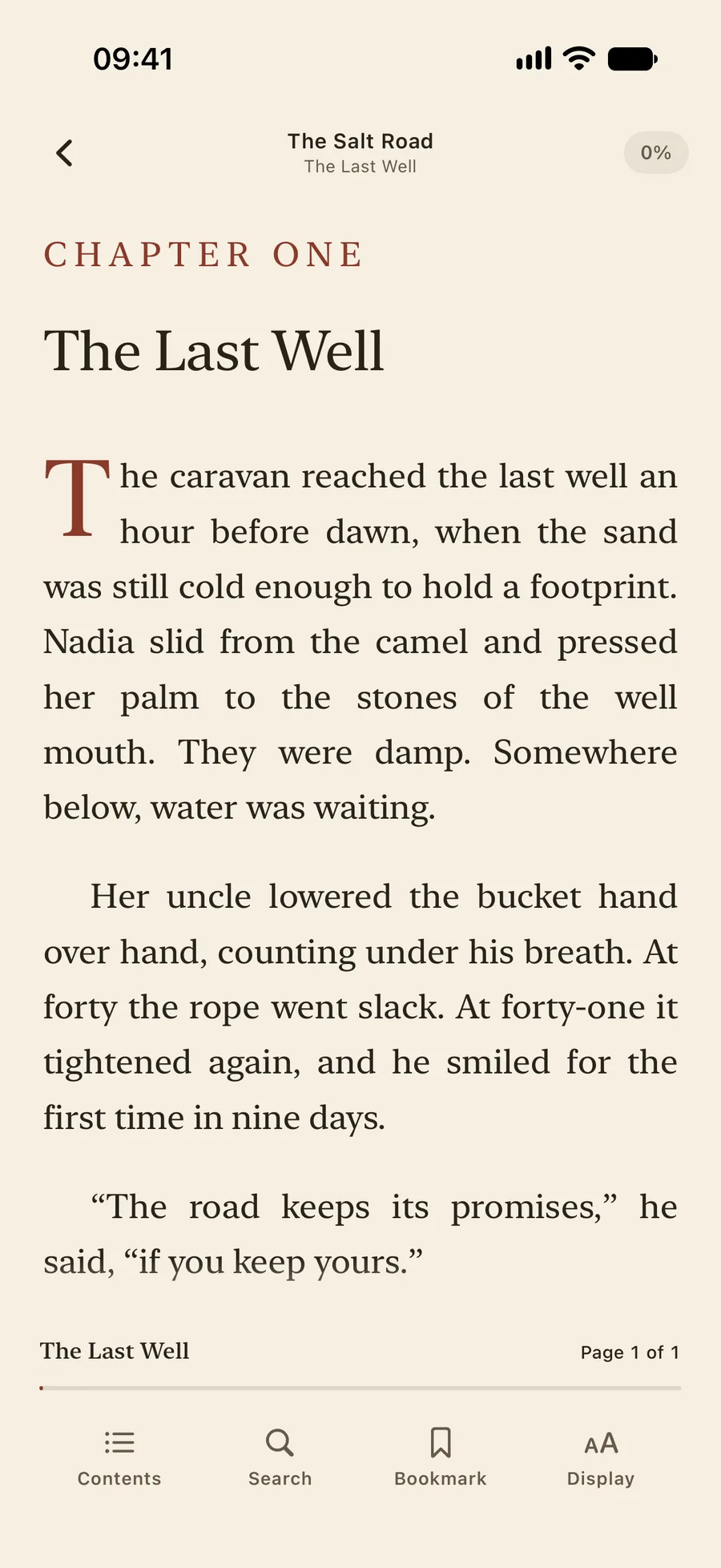
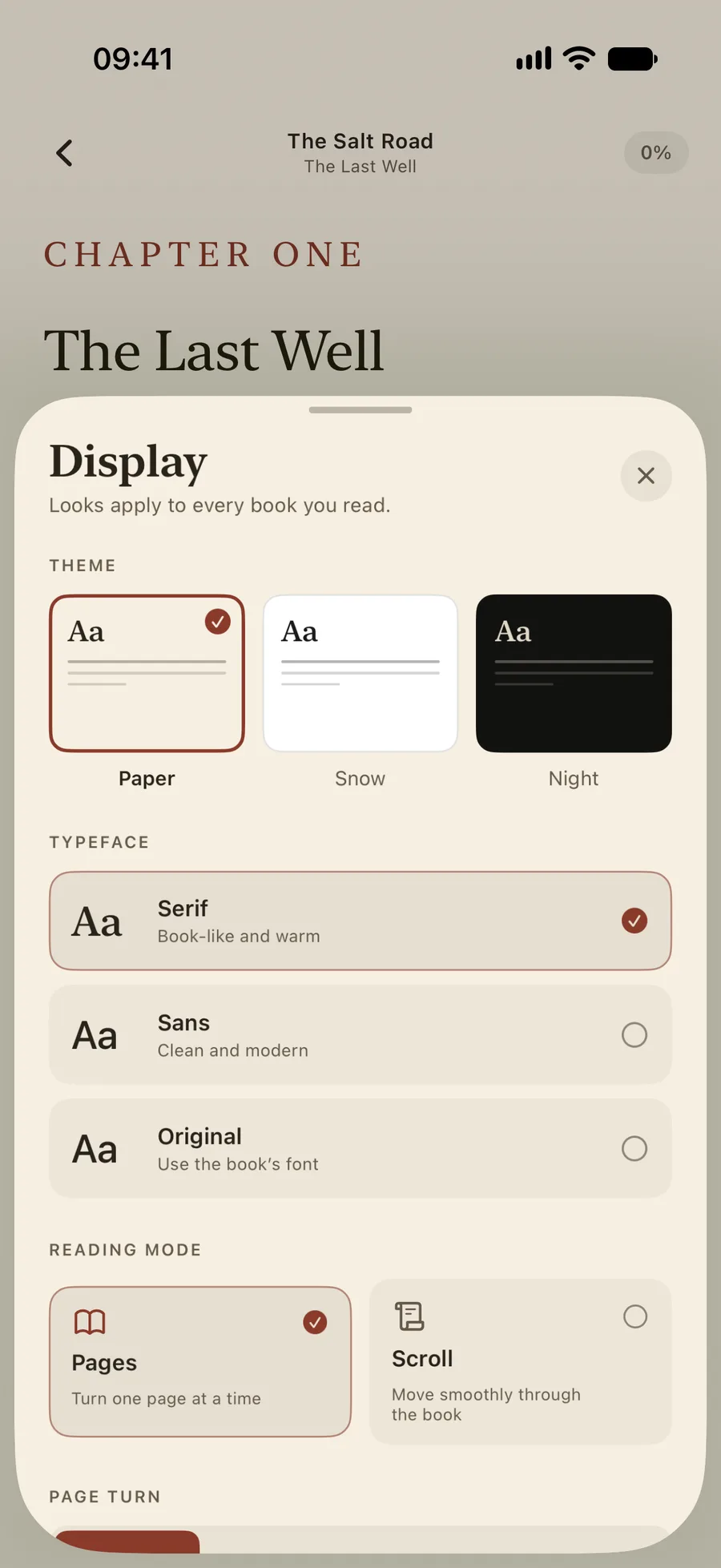
Tap a book to open it. Tap the middle of the page to show the controls, and tap Display (Aa) to change how books look:
- Theme: Paper, Snow or Night.
- Typeface: a serif, a sans-serif, or the book’s original font. You can also change the text size, line spacing and margins.
- Reading mode: Pages, where you turn one page at a time, or Scroll, which runs through the book in one continuous column.
- Page turn: in Pages mode, Slide, or Curl to turn pages like paper.
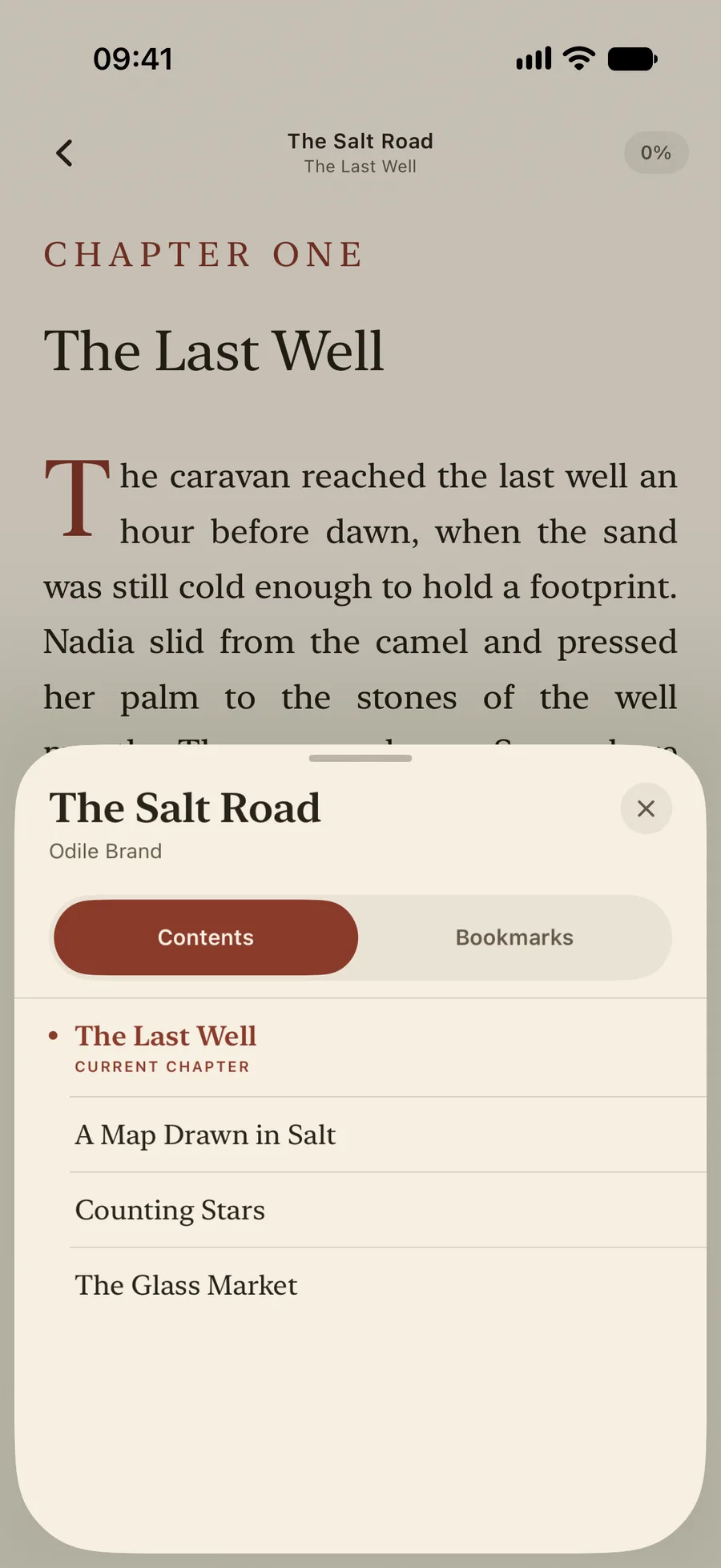
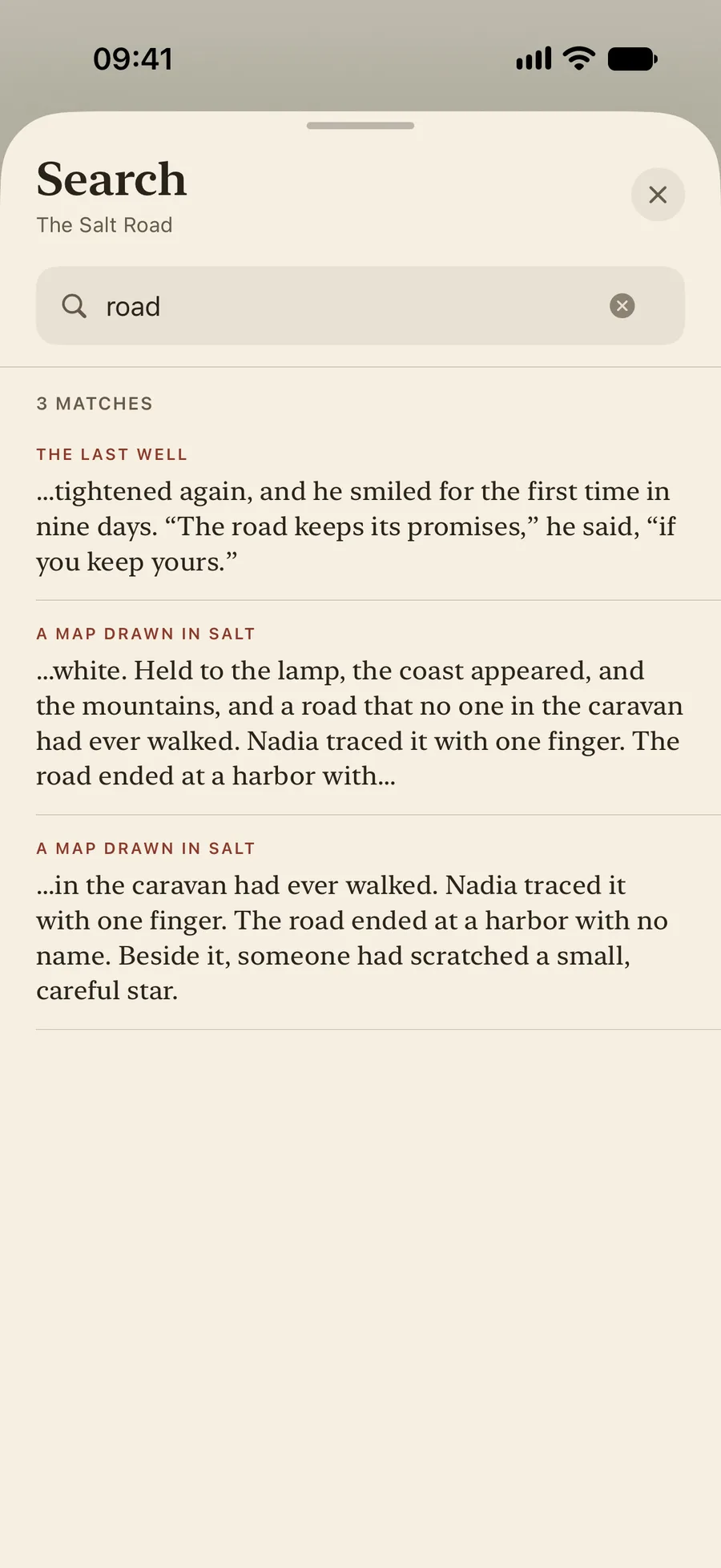
Display settings apply to every book. Contents lists every chapter and section and marks the one you’re in, with your bookmarks on a second tab. Search looks through the whole text of the book; tap a result to jump to the highlighted match. Folio saves your place in each book, so Continue Reading in the Library takes you back to it.
6. Add more books later
When you add books to Calibre, save them to the same Calibre Books folder with Save only EPUB format to disk. Calibre puts them into the same author and book folders.
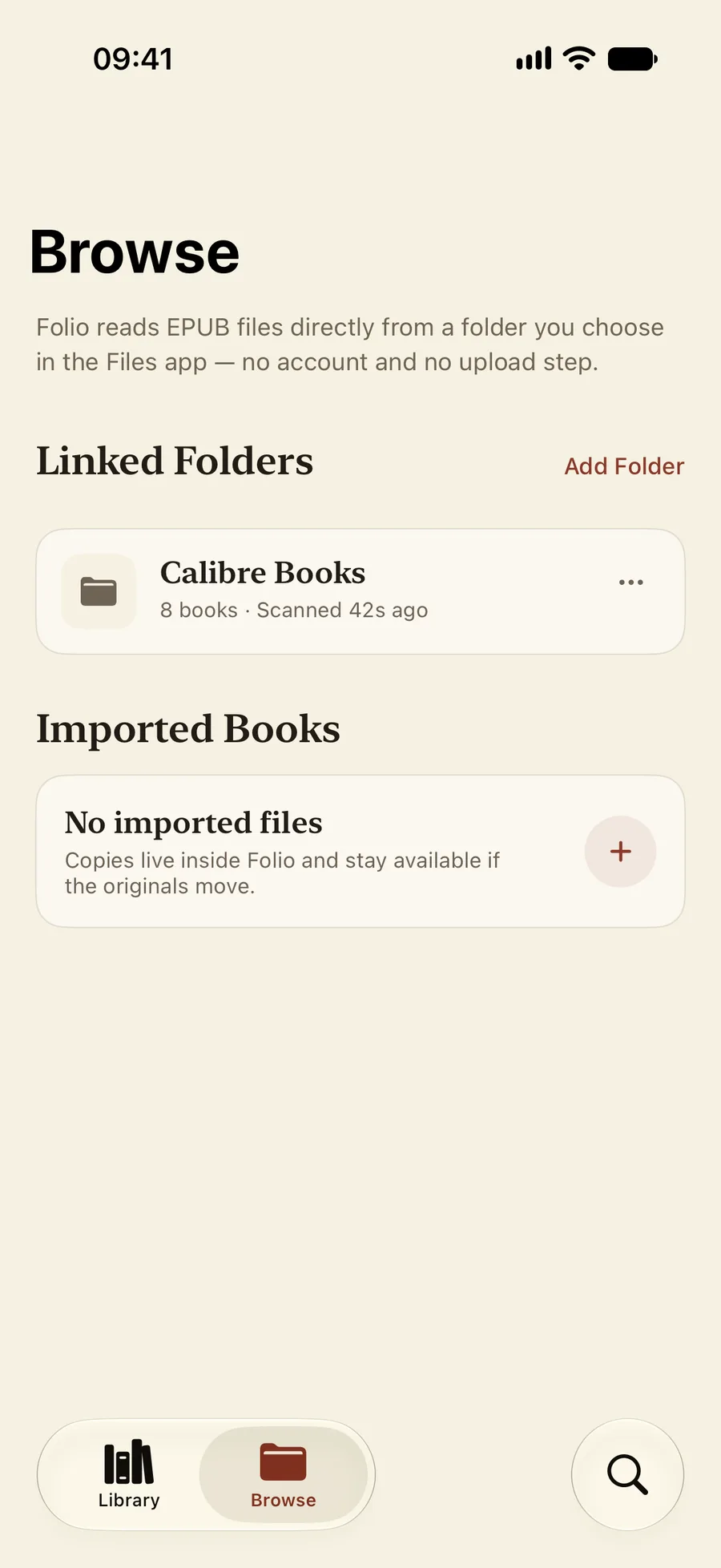
Folio doesn’t watch the folder in the background. To pick up the new books, open the Browse tab, tap … on the Calibre Books card and choose Rescan Folder. If you link more than one folder, Rescan all folders updates them together. A rescan adds new books and updates changed ones, and your progress and bookmarks in the books you’ve already read are kept.
To stop using the folder, choose Disconnect Folder from the same menu. This removes its books from Folio’s Library; your files in iCloud Drive aren’t touched.
If a book is missing or won’t open
- Fewer books than you expected: iCloud may not have downloaded them to the iPhone yet. Folio asks iCloud to download any EPUB it finds that isn’t on the device, but skips it in that scan. Wait a few minutes, then use Rescan Folder. To keep the whole folder on the iPhone, touch and hold it in Files and choose Keep Downloaded.
- A book counts as “couldn’t be read”: it is probably protected with DRM, which Folio can’t open, or the file is damaged. Try opening the same EPUB in Calibre’s viewer on the computer.
- MOBI, AZW3 or PDF files don’t appear: Folio only reads EPUB. Convert the books to EPUB in Calibre and save them again.
- A series isn’t grouped: check the Series field for those books in Calibre, save them to disk again so the metadata in the EPUB is updated, then rescan. A series needs at least two books in your Library to appear as a stack.
- You chose the wrong folder: disconnect it in Browse and link the top
Calibre Booksfolder instead.
Start with a handful of books to check the whole round trip, from Calibre to iCloud Drive to Folio, then save the rest of your library the same way.